
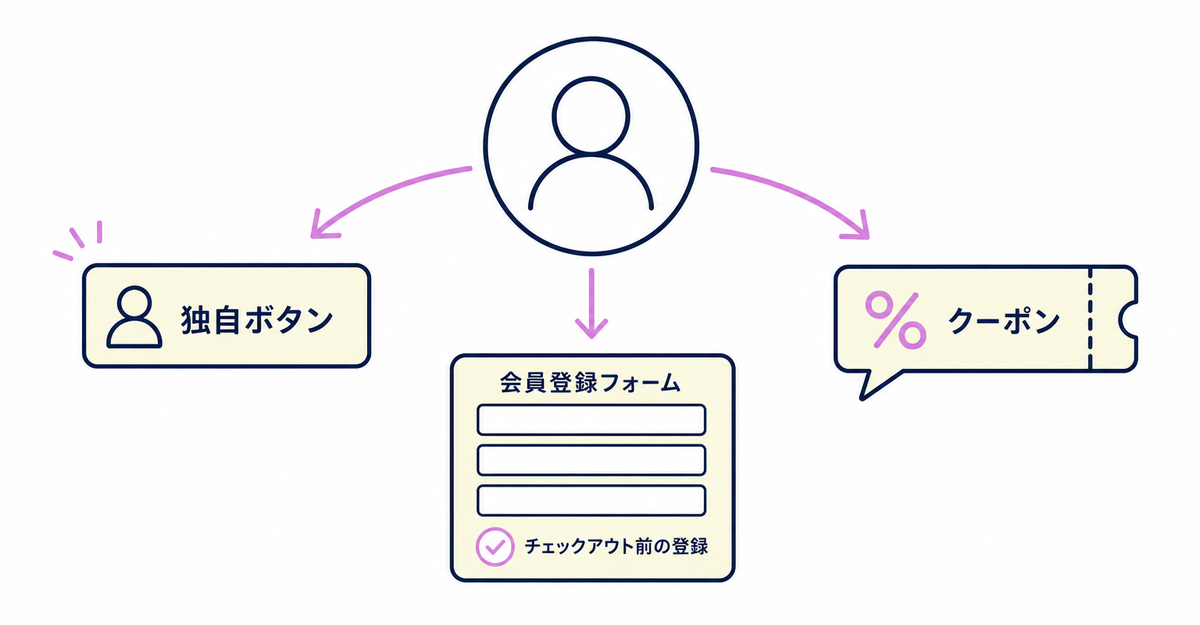
In short: To increase sign-ups with new customer accounts, combine three tactics: (1) add more entry points to the sign-up form, (2) require sign-up before checkout, and (3) promote sign-up rewards in the popup. You set up (1) and (2) by adding elements and classes to your theme, and (3) by setting the popup text in the Howdy app's admin.
With new customer accounts, customers can browse products and make some purchases without signing up, so sign-ups won't grow on their own if you do nothing. Of the three approaches (adding entry points to the sign-up form, making sign-up a condition, and showing sign-up rewards), choose the ones that fit your store.
Key points
- In addition to the standard login icon at the top right of the screen, you can place buttons or links that open the sign-up form anywhere in your theme
- Add the class
howdy-register-original-trigger-btnto your own button, and it links to the sign-up form automatically - Add a class for logged-out customers only to the buttons in the cart and on the product page, and the sign-up form opens before checkout
- When the display timing is Before Login, you can add text to the sign-up popup in Popup title, Popup description, and Popup help text
- When you require sign-up, you can hide the login link on the checkout page. Hiding it also removes the login link in your store header, so create your own login link with the
howdy-register-original-trigger-btnclass - Existing customers whose names are already registered aren't affected by your own buttons or required sign-up, and see the normal login page
- Customer metafields you collect can be used as customer segment conditions if their data type is date and time, number, text, or true or false
How do you add more entry points to the sign-up form?
By default, clicking the login icon at the top right of the screen opens the sign-up form popup (when the display timing is Before Login). To place buttons or links that open the sign-up form elsewhere, add the howdy-register-original-trigger-btn class to the elements you add to your theme.
Go from Theme Embed in the Howdy app settings to the theme editor, enable the app embed (app block), and save. Clicking the login icon at the top right of the screen then opens the sign-up form popup. As of September 8, 2026, Howdy supports all themes. If the popup doesn't open after you enable the app block, follow the steps in the Howdy Help article "How to install the Howdy sign-up app on unsupported themes" (Japanese) to add the class to the login buttons for desktop and mobile.
To place buttons or links in other places, follow these steps.
- With the app block enabled, add an element with text or a login icon (a button or a text link) to your theme
- Add the
howdy-register-original-trigger-btnclass to that element (example:<a class="howdy-register-original-trigger-btn">Sign up / Log in</a>)
Elements with this class link to the sign-up form automatically. Howdy Help recommends making a copy of your theme before editing code, so you can always go back to the original. The steps for testing on a duplicated theme are in How to test a sign-up form in Shopify without affecting your live store: duplicate themes and development stores, and the basic steps for embedding the app in your theme are in How to add a sign-up form to new customer accounts (Howdy).
| Entry point | Where | What to do |
|---|---|---|
| Standard login icon | Top right of the screen | Enable the app block and save |
| Your own buttons and text links | Anywhere in your theme | Add an element to your theme and add the howdy-register-original-trigger-btn class |
Sources: Howdy Help: "[Initial setup] Embed the form in your theme" / Howdy Help: "Can I add a link to the form from the login link on the checkout page?" (Japanese) / Howdy Help: "How to install the Howdy sign-up app on unsupported themes" (Japanese) / Howdy Help: "Q&A" (Japanese)
Does requiring sign-up before checkout increase sign-ups?
Yes. Add a class that responds only to logged-out customers to the buttons that go to checkout. Customers then can't proceed to checkout until they sign up, which increases sign-ups more reliably than adding entry points.
The buttons to change are in these four places.
| Button | Where |
|---|---|
| Check out | Cart page |
| Check out | Cart drawer |
| Buy it now | Product page |
| Other buttons that go to the checkout page | Various places in your theme |
The setup works like this.
- Go to Online Store > Themes > Customize, enable the app block, and save
- Edit your theme code with a condition so that the specified class is added to the target buttons only when the customer isn't logged in
- Duplicate your theme before editing the code, and check the changes without affecting your published theme
An example implementation is available for the Horizon theme. If you use another theme, edit the code using the same conditional logic.
Adding the condition doesn't change the button text or design. Only when a logged-out customer clicks the button does it go to the sign-up form instead. How to write the code for each button is in How to require sign-up before checkout in Shopify (Howdy). The login button on the checkout page isn't supported at this time. Hiding the login link on the checkout page also removes the login link in your store header, so if you require sign-up and hide the checkout login link, create a separate login button with the howdy-register-original-trigger-btn class on your store. The app's own login button that can appear on the checkout page is scheduled to be adjusted in the future. This custom button uses the same howdy-register-original-trigger-btn class as the buttons for adding entry points, so you don't need to learn them separately.
Requiring sign-up reliably increases sign-ups, but some customers may give up on buying because of the extra step. This approach suits stores that sell to members only or want to manage customer information in one place.
Sources: Howdy Help: "How to always collect member information before purchase" (Japanese) / Howdy Help Q&A: "Can I add a link to the form from the login link on the checkout page?" (Japanese)
Where do you promote sign-up rewards?
When the display timing is Before Login, you can add text to the popup shown at sign-up. Enter three fields in the Howdy app's admin, Popup title, Popup description, and Popup help text, and each appears in a set place in the popup.
Create discount codes on the Discounts page in the Shopify admin, and manage and update them on the same page. You can create four types of discount codes: fixed amount, percentage, Buy X get Y, and free shipping.
You can choose who can use a discount from All customers, Specific customers, Customer segments, and Markets. Each discount can have up to 5 customer segments for automatic discounts and up to 100 for discount codes. An example of setting up a discount with customer segments is the birth month coupon in 7 ways to use birthdays, addresses, and consent collected at sign-up (Shopify new customer accounts).
Sources: Howdy Help: "How to add text to the sign-up popup" (Japanese) / Shopify Help Center: "Discounts" / Shopify Help Center: "Managing and editing discounts"
Do more entry points or required sign-up affect existing customers?
Hardly at all. If the customer record linked to the email address entered has a name, the customer is treated as an existing customer and logs in without seeing the sign-up form.
Existing customers without a name see the sign-up form when they log in. Because they're detected the same way as new customers, your own buttons or required sign-up settings can't show different screens to existing and new customers. Existing customers who click your own button see the normal login page instead of the sign-up form. To collect extra fields from customers who have already signed up, switch the detection method to customer tags. After switching, customers without the tag (existing or new) see the sign-up form, and the tag is added when they finish. The setup steps are in How to collect extra details from existing customers in Shopify: new-member detection with customer tags.
How can you use the data from your new sign-ups?
Customer metafields collected with the sign-up form can be used as customer segment filters if their data type is date and time, number, text, or true or false. You can then choose the segments you create as discount eligibility or as email recipients.
Howdy Help explains how to collect birthdays and use Shopify Flow to add a birth month customer tag automatically, and how to create a birth month segment and send coupons. For the coupon, you create a segment with a condition such as metafields.custom.birth_month = 'July', choose Customer segments as the discount eligibility, and choose that segment as the recipients of a Shopify Messaging email. With the Howdy profile page blocks, customers can view and edit their customer metafield values on the account page.
Use cases are in 7 ways to use birthdays, addresses, and consent collected at sign-up (Shopify new customer accounts), an example of showing membership tiers is in How to show membership tiers on the account page in new customer accounts, and the settings for collecting company and department names are in How to collect company details from business customers at sign-up in Shopify: customer metafields.
Sources: Shopify Help Center: "Customer segment filters based on metafields" / Howdy Help: "[Preparation] How to set up customer metafields" / Howdy Help: "How to collect birth months and issue birthday discount coupons" (Japanese) / Howdy Help: "[Initial setup] Profile Page"
Related articles
- Sign-up forms for Shopify new customer accounts: 14 frequently asked questions
- How to add a sign-up form to new customer accounts (Howdy)
Frequently asked questions
Questions about new customer accounts? Ask us anytime.
Ask us about anything from adding entry points to the sign-up form, implementing required sign-up before checkout, and writing text to promote rewards, to checking the effect on existing customers. Our dedicated team creates customer metafields, sets up sign-up form fields, and places profile page blocks for you for free.




