
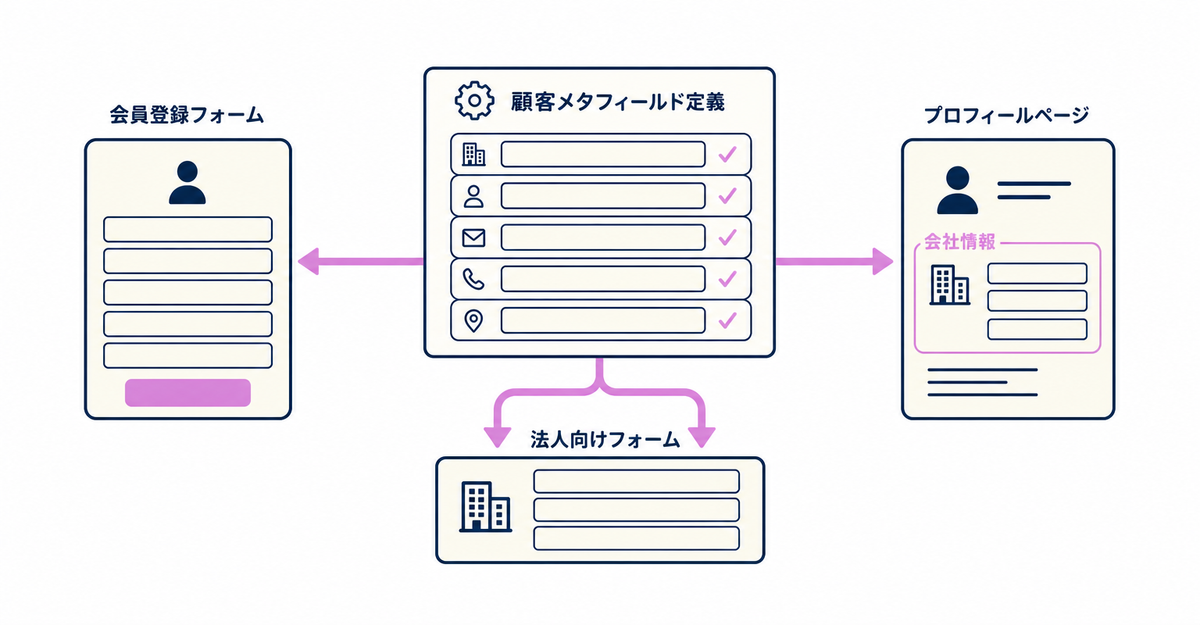
In short: To collect company and department names from business customers in Shopify's new customer accounts, create these fields as customer metafields and add them as custom fields to the Howdy sign-up form. After sign-up, customers can view and edit their company details on their own account page. To set this up, place a Howdy metafield block configured with those metafields on the profile page. If you want separate forms for general customers and business customers, use the multiple forms feature.
Key points
- Create company name, department name, and similar fields as customer metafields in the Shopify admin under Settings > Metafields and metaobjects > Customers
- Add the fields you created as custom fields on the Howdy sign-up form so customers fill them in at sign-up
- Place a Howdy metafield block configured with company name and department name on the profile page. Customers can then view and edit their company details on the account page after sign-up
- To use different form fields for general customers and business customers, specify a form ID with the multiple forms feature
- To set pricing or show different products for each company, set up companies in Shopify B2B
How do you collect business customers' company and department names with a sign-up form?
In the Shopify admin, go to Settings > Metafields and metaobjects > Customers and click Add definition. For each field, such as company name or department name, set a name, a namespace and key, and a type, then save. For free-text fields, choose Single line text. On the Registration Form Settings page in Howdy, select the definition you created from Add items and set whether the field is required or optional and its display label. The field then appears as an input field at sign-up.
Sources: Howdy Help: "① [Preparation] How to set up customer metafields" / Howdy Help: "③ [Initial setup] Sign-up form"
Can customers view or change their company details after sign-up?
Yes. Customers can view and edit the company and department names collected as customer metafields through the sign-up form. To let them do this on their account page, embed a Howdy metafield block on the profile page.
In the app's admin, open the profile block settings under Blocks, click Create Block, and choose customer metafield as the type. When you add a metafield and select the customer metafield definitions for company name and department name, the namespace and key are filled in automatically. Set the status to Active and save. Next, in the Shopify admin, go to Settings > Checkout and click Customize in the settings section. Open Profile Page, place the Howdy block from Add App Block, enter the App Block ID shown in the app's admin, and save.
Source: Howdy Help: "④ [Initial setup] Profile page"
Can you use different form fields for general customers and business customers?
Yes. On the Registration Form Settings page in Howdy, you can create multiple forms, each with its own set of fields. In the theme editor, add the sign-up form block and specify a form ID. Links and buttons with that ID then open only the specified form. For example, you can set up one button for general customers and a separate button for business customers that opens a form with company name and department name fields.
Source: Howdy Help: "Setting up multiple forms" (Japanese)
If your theme is heavily customized, where to place buttons that specify a form ID varies by store. Feel free to contact us.
How do you change prices or products for each company?
Use Shopify B2B. In the admin, set up your B2B customers as companies. You can then change pricing, currency, products, payment and shipping methods, and store content for each company. Shopify B2B features are included in plans that support B2B features.
You can sell both B2B and D2C (direct to consumer) from one store, or create a separate store just for B2B. To create company accounts with separate request and approval steps, see How to add an approval step to wholesale sign-up in Shopify: company account requests.
Source: Shopify Help Center: "Shopify B2B"
Related articles
- How to add an approval step to wholesale sign-up in Shopify: company account requests
- What standard sign-up collects in new customer accounts, and how to add fields
Frequently asked questions
Try Howdy free for 14 days
From the app's admin, you can set up fields such as company name and department name as customer metafields and place them on the sign-up form and the profile page. With our free setup service, our dedicated team creates the customer metafields, sets up the sign-up form fields, and places the blocks on the profile page for you.




