
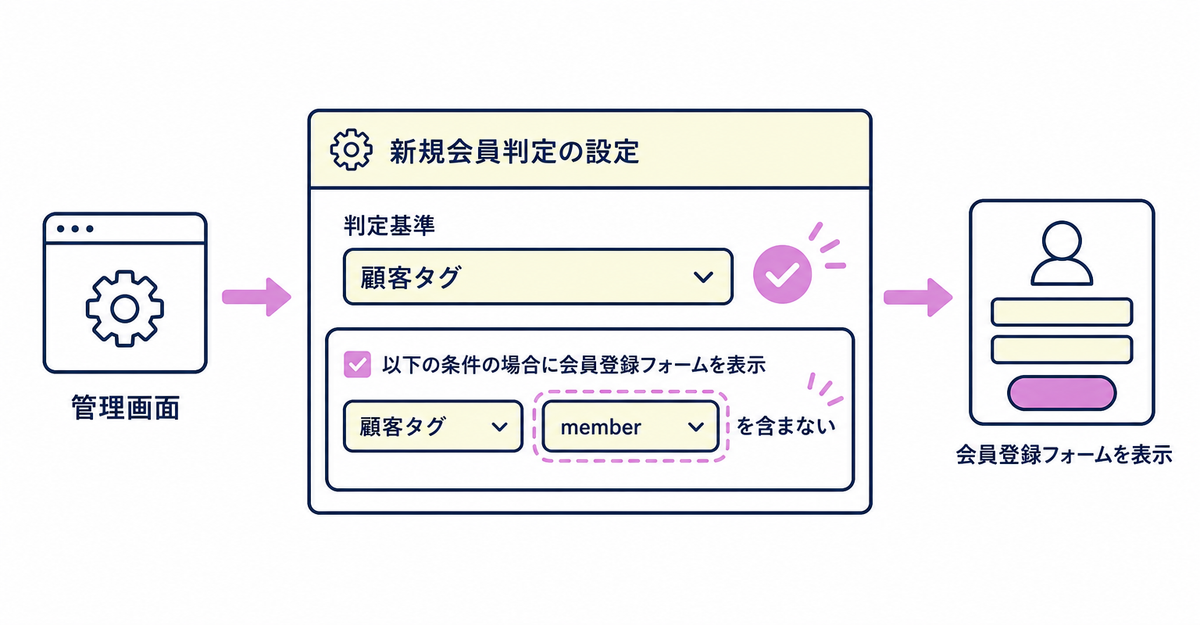
In short: If you switch Howdy's new customer detection to the customer tag method, you can show the sign-up form to existing customers whose names are already registered. When a customer completes the form, the tag you specify is added automatically, and the form no longer appears for that customer.
Once you finish these steps, your live store can use the sign-up form to collect extra details such as birthdays and addresses, not only from new customers but also from existing customers whose names are already registered. With the default detection method, the form doesn't appear for customers whose names are already registered, so you need to make this switch. Everything is set up in the app's admin, and you don't need to edit your theme code.
Some stores collected only names and addresses when they first added the sign-up form, and later added fields such as birthdays or terms of service consent. In those stores, many customers who have been buying for a while have already registered their names, so with the default detection they never get asked to fill in the new fields. When you switch to the setting in this article, those existing customers also see the form at their next login and can fill in the fields you added. Once they finish, the tag is added and the form doesn't appear for them again.
Key points
- The default new customer detection tells new and existing customers apart by whether a name is registered in the customer information for the email address
- With the default setting, the form doesn't appear for existing customers whose names are already registered
- If you switch the detection criteria to customer tags, you can show the form to customers who don't have the tag you specify
- When a customer completes the form, the tag you specify is added automatically, and the form no longer appears for that customer
- Switching doesn't change what new customers see. It only extends the form to existing customers too
- To save the details you collect with the form, such as birthdays and addresses, create customer metafields in advance
What is new customer detection?
It's a Howdy feature that determines whether a customer who opens the sign-up form is new or existing, and decides whether to show the form. By default, it checks whether a name is registered in the customer information for the email address entered. If a name is registered, Howdy treats the customer as existing, doesn't show the form, and moves on to the login flow. If no name is registered, Howdy treats the customer as new and shows the sign-up form before completing the sign-up.
This detection runs automatically when the customer enters their email address. You don't need to mark each customer as new or existing yourself. Howdy checks the customer information and routes the customer accordingly.
Which customers don't see the form with the default detection method?
Every customer whose name is already registered. In new customer accounts, the name and address a customer enters at purchase are saved as customer information. As a result, many customers with past purchases are treated as "existing" by the default detection, and they keep logging in without ever seeing the sign-up form.
If your store wants to collect information later that isn't part of the purchase fields, such as birthdays or terms of service consent, the default detection method only lets you collect it from new customers who haven't registered a name. Existing customers who have already registered a name never get the chance to open the form and keep logging in with a verification code only. The longer this continues, the larger the share of customers who haven't filled in extra fields such as birthdays and addresses.
How do you set it up to show the form to existing customers too?
Switch the new customer detection criteria to "Customer tag." You set this up in General Settings in the app's admin, and you can change the detection criteria, specify the tag name, and set the condition all on one screen.
- Open General Settings in the app's admin
- Change the criteria for New Customer Detection to "Customer tag"
- Decide on the tag name to use for detection (for example, member)
- Set the condition "Show the sign-up form if the customer doesn't have the customer tag 'member'"
- Set the sign-up completion tag to the same "member"
- Save
After you save, every customer who doesn't have the tag you specified (new or existing) sees the sign-up form at their next login or when they enter their email address. Customers who already have the tag you specified don't see the form, just as before. You can use any tag name other than "member." Choose a name that doesn't overlap with the tags you already use.
When is the tag added?
When the customer completes the sign-up form. The tag you specify (for example, member) is added automatically: for new customers, when their first sign-up is complete, and for existing customers, when they fill in and submit the form at their next login.
Once the tag is added, the form no longer appears for that customer, and they go back to the normal login flow. Customers are never asked to fill in the form twice. For existing customers, the form appears once at their next login. After they finish it, they go back to logging in with just a verification code, the same as under name-based detection. This one form collects all the extra fields, such as birthdays and addresses.
How does the default detection method differ from the customer tag method?
| Item | Default detection method (name) | Customer tag method |
|---|---|---|
| Information used for detection | Whether a name is registered in the customer information | Whether the customer has the customer tag you specify |
| Who sees the form | Only new customers who haven't registered a name | Customers who don't have the tag you specify (both new and existing) |
| Tagging | None | Added automatically when the form is completed |
Switching to the customer tag method doesn't change what new customers see. The only change is that existing customers whose names are already registered also see the form.
What kind of store is this setting suited to?
It suits stores that have already been using Howdy for a while more than stores adding a sign-up form for the first time. In a newly opened store, no customers have registered a name yet when you add the form, so the default detection method alone shows the form to everyone.
On the other hand, if a store with many past customers adds fields such as birthdays or addresses later, the default detection method doesn't show the form to existing customers whose names are already registered, so they never fill in the new fields. When you switch to the setting in this article, even a live store can collect information again, including from existing customers.
The customer tag method shows the form to every customer who doesn't have the tag you specify. It isn't a setting for showing the form only to a specific group of customers. If you want to narrow down who sees it, you need to add the detection tag in advance to each customer you want to exclude.
Where is the collected information saved?
If you collect information other than names with the form, such as birthdays and addresses, create customer metafields in advance. Without a metafield to save to, what customers enter isn't saved, even if you add the field to the form. Switching the detection criteria and adding fields to collect are separate settings, so do both. The steps for creating them are in How to add a sign-up form to new customer accounts (Howdy).
How to write a message telling existing customers about the new fields is covered in How to tell existing customers about the move to new customer accounts. Examples of using birthdays and addresses after you collect them are in 7 ways to use birthdays, addresses, and consent collected at sign-up (Shopify new customer accounts).
Source: Howdy Help: "[Preparation] How to set up customer metafields"
Related articles
- How to automate post-sign-up tasks with Shopify Flow: tagging and metafield updates
- How to add a sign-up form to new customer accounts (Howdy)
Frequently asked questions
Try Howdy free for 14 days
Once this setup is done, you can use the sign-up form to collect extra details such as birthdays and addresses, not only from new customers but also from existing customers whose names are already registered. You can switch the detection criteria and set up the tag in the app's admin. Our dedicated team creates your customer metafields, sets up the sign-up form fields, and places the blocks on the profile page for free.




