
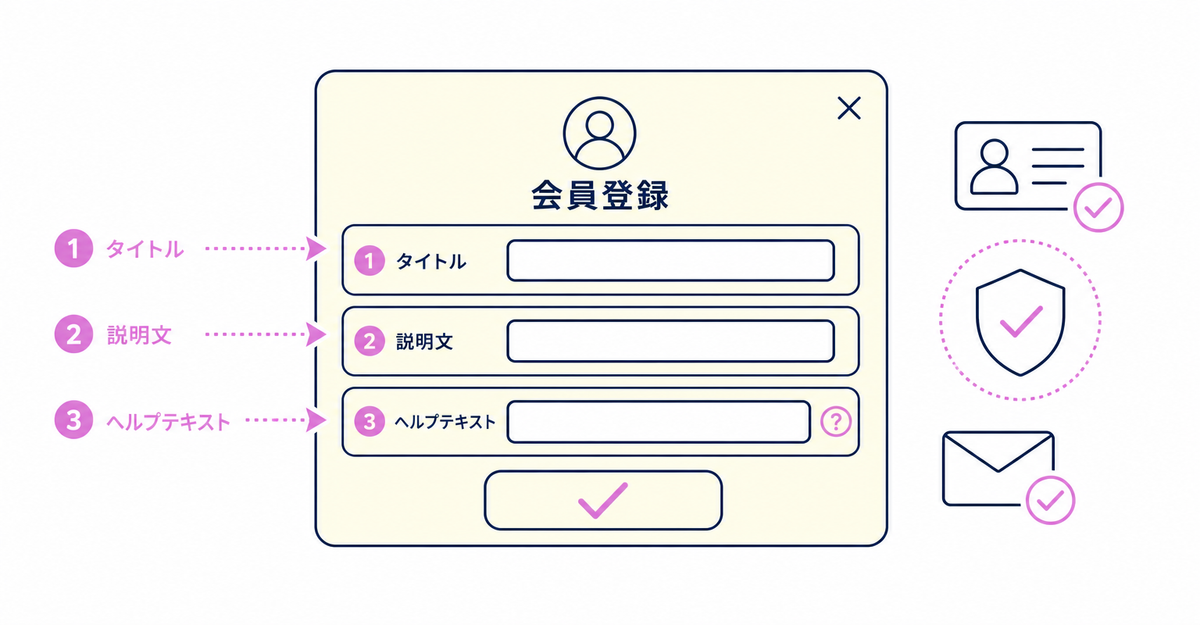
In short: To change the text in Howdy's sign-up popup, enter your text in the three fields in the app's admin (Popup title, Popup description, and Popup help text) and save. The text then appears in your store's sign-up popup. This feature is available when the sign-up form display timing is set to Before Login. The steps for setting up the sign-up form itself are in How to add a sign-up form to new customer accounts (Howdy).
Key points
- You can change the popup text when the sign-up form display timing is set to Before Login
- You can change three items: Popup title, Popup description, and Popup help text
- You enter the text in three fields in the Howdy app's admin
- Each of the three pieces of text appears in its own fixed position in the popup
- You check and change the display timing in General Settings in the app's admin
When does the sign-up popup appear?
When the sign-up form display timing is set to Before Login, the sign-up popup appears at the sign-up step that customers reach after entering their email address. With the After Login setting, the sign-up form appears at a different point.
You choose the display timing from these two options in General Settings in the Howdy app's admin.
| Display timing | When customers go to the sign-up form | Description in Howdy Help |
|---|---|---|
| Before Login | After entering their email address | A flow close to legacy customer accounts |
| After Login | After they finish logging in | A flow close to Shopify's new standard |
If some of your customers log in with Shop, Google, or Facebook, see How to use a sign-up form alongside Shop, Google, and Facebook login for how to choose.
Sources: Howdy Help: "How to add text to the sign-up popup" (Japanese) / Howdy Help: "Display timing of the sign-up form" (Japanese)
Which parts of the popup text can you change?
From the Howdy app's admin, you can add or change the text of these three items shown in the sign-up popup. Once you save, the text you entered appears as is in your store's sign-up popup.
| Item | What it is |
|---|---|
| Popup title | The heading text of the popup |
| Popup description | The description text that follows the title |
| Popup help text | Supplementary text |
Each of the three pieces of text you enter appears in its corresponding fixed position in the popup.
Source: Howdy Help: "How to add text to the sign-up popup" (Japanese)
Where in the app do you enter the popup text?
Enter it in the three fields in the Howdy app's admin: Popup title, Popup description, and Popup help text. The text you enter appears in fixed positions in the popup.
To adjust the look of the sign-up form with code, beyond the popup text, see How to apply custom CSS to the sign-up form in Shopify: step-by-step styling.
Source: Howdy Help: "How to add text to the sign-up popup" (Japanese)
Related articles
- How to add a sign-up form to new customer accounts (Howdy)
- What you can change on the new customer accounts login page: logo, text, and CSS
Frequently asked questions
Try Howdy free for 14 days
With the sign-up popup text in place, you can guide customers before they sign up with three pieces of text: the title, description, and help text. Our dedicated team creates customer metafields, sets up sign-up form fields, and places blocks on the profile page for free.




