
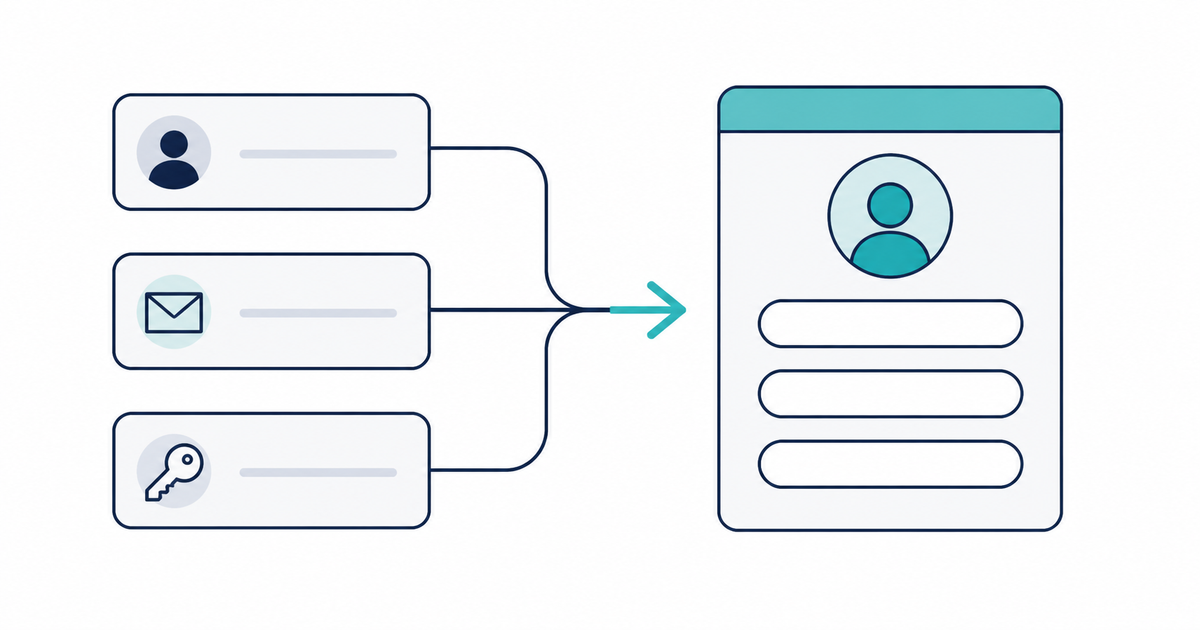
In short: You can use Howdy's sign-up form even if your store has Shop login, Google login, or Facebook login turned on. Set the sign-up form's display timing to After Login and switch New Customer Detection to use a customer tag. The form then appears only to customers who haven't signed up yet, whichever login method they use.
Key points
- Turn on Shop login and social login (Google and Facebook) in the Shopify admin under Settings > Customer accounts
- If you set the display timing of Howdy's sign-up form to After Login, the form can appear after login is complete, whichever login method the customer uses
- If you switch New Customer Detection to use a customer tag, the form is shown or hidden based on whether the customer has already submitted it, not on whether the name field is filled in
- Customer tag detection also works when you want to collect sign-up form details from existing customers
Where do you turn on Shop, Google, and Facebook login?
In the Shopify admin, go to Settings > Customer accounts. There you can set up Social login (「ソーシャルログイン」) for logging in with Google and Facebook, and Sign in with Shop (「Shop でログイン」).
Source: Shopify Help Center: "Managing customer accounts"
Can customers who log in with Shop also see Howdy's sign-up form?
Yes. When customers select the login or sign-up button on your store, they go to the Shopify login page, where they can log in with their Shop account through "Continue with shop". Customers who haven't signed up yet then see the sign-up form, and customers who have already signed up continue without it. In Howdy, if you set the sign-up form's display timing to After Login, the sign-up form appears on the screen shown after Shop account authentication is complete.
Source: Howdy Help: "How to use Howdy with Shop account login" (Japanese)
What's the difference between Before Login and After Login display timing?
Before Login shows the sign-up form right after the customer enters their email address, before login is complete. This flow is close to legacy customer accounts. After Login shows the sign-up form after login is complete. Use it when you combine the form with newer login methods such as Shop, Google, and Facebook. You can change this setting in General Settings in the app's admin.
Source: Howdy Help: "When the sign-up form appears" (Japanese)
Will customers who already signed up keep seeing the form at later logins?
You can set it up so they don't. If you set New Customer Detection to use a customer tag and set the sign-up completion tag to "member", customers who finish the form get the tag, and the form no longer appears from their next login.
By default, after a customer enters their email address, Howdy checks whether the customer record registered with that email address has a name. If it does, the customer is treated as an existing customer and logs in without seeing the sign-up form. When you use the form alongside Shop login, Howdy Help recommends making the customer tag the condition for showing the sign-up form, and adding the tag to customers who sign up through the form. The settings are as follows.
- For New Customer Detection, choose customer tag
- For the display condition, choose to show the sign-up form when the customer doesn't have the customer tag "member"
- Set the sign-up completion tag to "member"
With these settings, you can collect the sign-up form fields from both new and existing customers.
Sources: Howdy Help: "How to show the sign-up form to existing customers with New Customer Detection" (Japanese) / Howdy Help: "How to use Howdy with Shop account login" (Japanese)
Related articles
- What are Shopify's new customer accounts? Differences from legacy accounts and what to do in 2026
- How to add a sign-up form to new customer accounts (Howdy)
- Sign-up forms for Shopify new customer accounts: 14 frequently asked questions
Frequently asked questions
Try Howdy free for 14 days
You can set up the sign-up form alongside Shop, Google, and Facebook login from the app's admin. Our dedicated team creates customer metafields, sets up the sign-up form fields, and places blocks on the profile page for free.




