
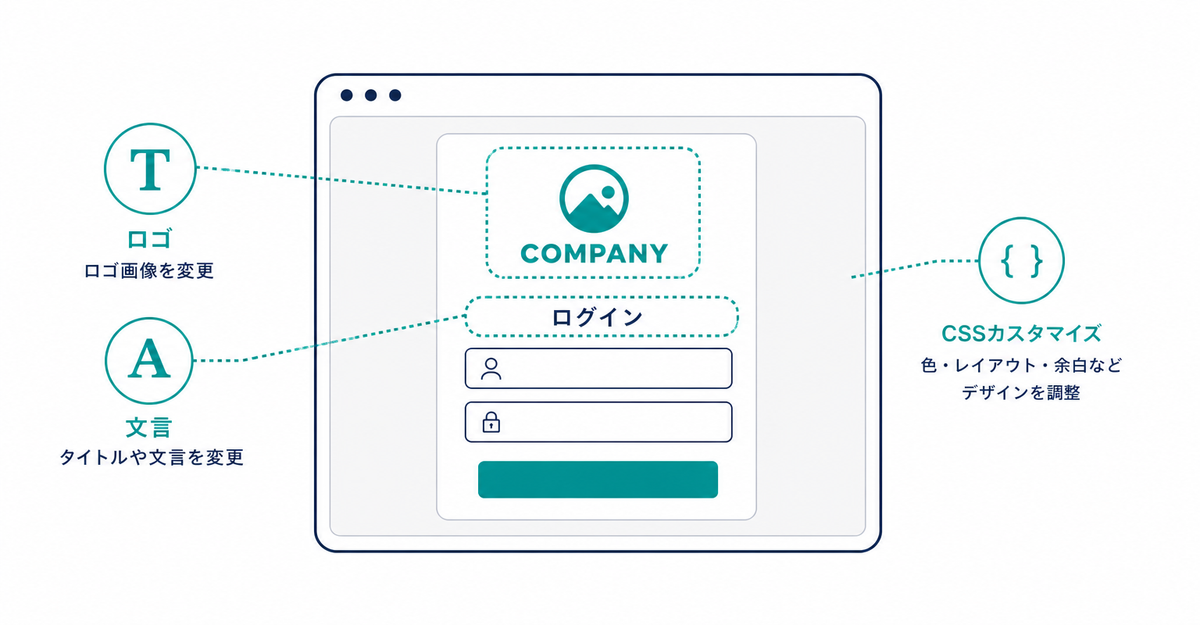
In short: On the new customer accounts login page, you can change the logo, background color, accent color, and hero image in the checkout and accounts editor in the Shopify admin. You can change the sign-up form popup text, the terms of service checkbox text, and custom CSS/JavaScript in the Howdy app's admin and by editing your theme. You can't add blocks to the Sign-in page.
Key points
- Set the logo, background color, accent color, and hero image in the checkout and accounts editor in the Shopify admin
- By default, the customer accounts domain uses the shopify.com format. If you create a subdomain and set it as the primary domain for customer accounts, customer accounts appear on your own domain
- You can edit three items of the sign-up popup in the Howdy app's admin: the title, description, and help text
- Custom CSS and JavaScript apply only to sign-up forms placed Before Login
- Add name, phone number, and address as Shopify fields, and birthday or terms of service consent as customer metafields, to the form in the Howdy app's admin
How much can you change the logo, colors, and images?
In the Shopify admin, go to Settings > Checkout and click Edit (「編集」) to open the checkout and accounts editor. There, you set the logo image and size, the background color, the accent color, and a hero image for desktop. The shared branding settings you edit here are applied automatically to the customer accounts login page as well.
Source: Shopify Help Center: "Customizing customer accounts"
Can the login page use your own domain?
Yes. By default, the customer accounts domain uses the format shopify.com/(store ID number)/account. Go to Settings > Customer accounts, click Change domain (「ドメインを変更」) in the URL section to create a subdomain, and then in Settings > Domains, set that subdomain as the primary domain for customer accounts. If your primary domain is your-store.com, it becomes account.your-store.com. If you change your primary domain in Settings > Domains in the admin, the customer accounts domain changes with it.
Source: Shopify Help Center: "Connecting a custom subdomain to customer accounts"
How much can you change the sign-up form text?
If your sign-up form is placed Before Login, you can edit the text of the popup shown at sign-up in the Howdy app's admin. You can edit three items: the title, description, and help text.
You can also add a checkbox to collect consent to your terms of service. By editing the HTML code, you choose the label from two patterns, "Agree to the terms of service" or "Agree to the terms of service and privacy policy," and replace the link with the URL of your actual terms page.
Sources: Howdy Help: "How to add text to the sign-up popup" (Japanese) / "How to set up terms of service with a link" (Japanese)
Can you apply custom CSS and JavaScript?
Yes, but only to sign-up forms placed Before Login. Sign-up forms set to display After Login aren't supported.
Here's how to apply them.
- Add your custom CSS and JavaScript files to your theme's assets
-
In
theme.liquid, add the code that loads them, with a condition so they load only on Howdy pages (request.path contains "howdy-apps") - Check how it looks in the preview
Source: Howdy Help: "How to apply custom CSS and JavaScript" (Japanese)
Can you add fields?
Yes. Add name, phone number, and address as form fields with Howdy's "Add Shopify fields." For birthday, terms of service consent, and similar details, define them as customer metafields first, and then add them as form fields with "Add custom fields."
The setup steps are in How to add a sign-up form to new customer accounts (Howdy).
You can't add customization blocks to the Sign-in page itself. You can add blocks to account pages (profile, order list, and so on) and add new pages. The details are in What happens to your theme customizations when you move to new customer accounts?.
Sources: Howdy Help: "③ [Initial setup] Sign-up form" / "① [Preparation] How to set up customer metafields" / "How to set up address fields" (Japanese) / Shopify Help Center: "Upgrading to customer accounts from legacy customer accounts" / "Customizing customer accounts"
Related articles
- How to brand the Shopify login page: logo, colors, and images
- How to add a sign-up form to new customer accounts (Howdy)
Frequently asked questions
Questions about new customer accounts? Ask us anytime.
Ask us to check what you can change on the login page and sign-up form, or to help set up the text and custom CSS. With our free setup service, our dedicated team at Howdy creates customer metafields, sets up the sign-up form fields, and places blocks on the profile page for you.




