
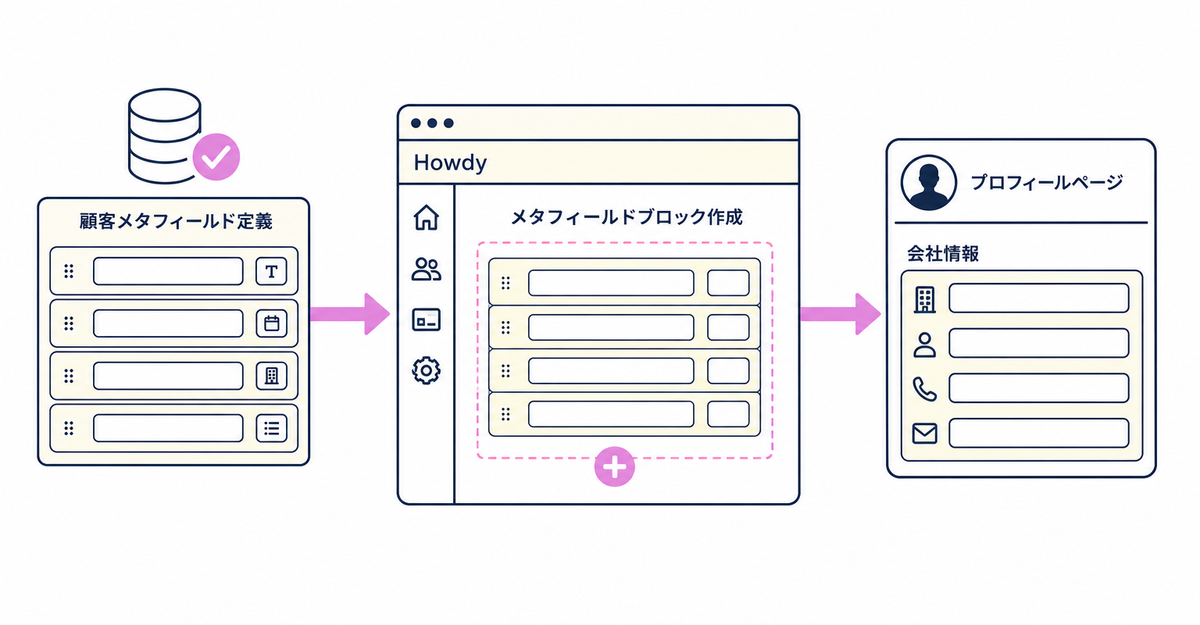
In short: To show business customers' company details on the profile page in Shopify's new customer accounts, create fields such as company name and department as customer metafields, then create a metafield block in Howdy's app admin. Place the block as an app block in the profile page editor in the Shopify admin, and customers can view and edit their company details on their own account page. To show more than one field, such as company name and department, prepare a metafield and a block for each field.
Key points
- Before showing company details on the profile page, create fields such as company name and department as customer metafields
- On the Blocks page in Howdy's app admin, create a block and choose metafield block as the block type
- Enter the namespace and key of the customer metafield definition you created in the block settings, and set the status to Active
- From Settings > Checkout in the Shopify admin, open the checkout and accounts editor, add an app block to the profile page, and set the App Block ID
- To show multiple fields, such as company name and department, create a block for each field using the same steps
Is there anything to check before you start setting up the profile page?
If you set up the profile page on a published store, you need to choose a pricing plan first. On a development store, you can try the setup for free without choosing a pricing plan.
Before you start setting up the profile page, you also need to create customer metafields for the customer details you want to show. If some fields, such as company name or department, don't have customer metafields yet, create those customer metafields first, then move on to creating the block described in this article.
Source: Howdy Help: "④ [Initial Setup] Profile Page"
What do you need to prepare to show company details on the profile page?
To show company details such as company name and department, you need to create them as customer metafields in advance. You create customer metafields in the Shopify admin under Settings > Metafields and metaobjects > Customers.
Click Add definition. For free-text fields such as company name and department, choose Single line text as the type. Enter "Company name" as the name, enter any values you like for the namespace and key, and save to create the customer metafield. To collect more than one field, such as department, create a customer metafield for each field using the same steps. If you're also setting up the sign-up form to ask customers for their company details, How to collect company details from business customers at sign-up in Shopify: customer metafields explains the steps from creating the metafields to adding the fields to the sign-up form. If you're already saving company name and department to customer metafields through the sign-up form or another route, the metafields are already created, so you only need to follow the steps in this article to create and place the blocks.
Source: Howdy Help: "① [Preparation] How to set up customer metafields"
How do you create a block to show company details?
On the Blocks page in Howdy's app admin, click the Create Block button and choose the type of block to create. To show customer metafield values such as company name and department, choose metafield block as the block type.
When you choose a metafield block, enter the namespace and key of the company name and department customer metafield definitions you created earlier in the block settings. After entering the settings, click Save and check that the block's status is Active. To show multiple fields, such as company name and department, create a block for each field using the same steps.
Sources: Howdy Help: "How to set company metafields on the profile page" (Japanese) / Howdy Help: "④ [Initial Setup] Profile Page"
How do you place the block on the profile page?
In the Shopify admin, go to Settings > Checkout, open the checkout and accounts editor, and select Profile Page in the editor.
Use the Add App Block button to add Howdy's app block. Next, check the App Block ID shown on the Blocks page in Howdy's app admin, enter the same ID in the app block settings in the editor, and save. Once you save, the block you created appears on the profile page.
Source: Howdy Help: "④ [Initial Setup] Profile Page"
Can company details collected on the sign-up form also appear on the profile page?
Yes. Howdy Help explains that to collect customer details on the sign-up form and show them on the profile page, you first set up customer metafields to create a place to store the information.
When you choose company metafields, set up the metafields, and embed them in the profile, the company metafield values can be viewed and edited on the profile page. How to set up the profile page itself is covered in Howdy Help's "④ [Initial Setup] Profile Page". After you finish setting up customer metafields, Howdy Help directs you to "② [Initial Setup] Registration Form" for the steps to add fields to the sign-up form. The steps to collect company details at sign-up are in How to collect company details from business customers at sign-up in Shopify: customer metafields.
Sources: Howdy Help: "How to set company metafields on the profile page" (Japanese) / Howdy Help: "① [Preparation] How to set up customer metafields"
Can customers update their company details after they're shown?
Yes. When you place a metafield block, it's embedded in the new customer profile page, and customers can edit the metafield values themselves.
If a customer enters their company name and department once at sign-up and the details later change because of a transfer or a company name change, the customer can update them on the profile page. The store doesn't need to update any values one by one. When a customer opens their account page and updates the details, the customer metafield values are updated.
Source: Howdy Help: "④ [Initial Setup] Profile Page"
Can you show fields other than company name the same way?
Yes. Any information you've created as a customer metafield, not just company name and department, can be shown on the profile page using the same metafield block mechanism.
The range of information the profile page can show is covered in What the account page can show in new customer accounts: displaying metafields. An example of showing membership tier values on the account page with the same mechanism is in How to show membership tiers on the account page in new customer accounts.
Source: Howdy Help: "How to set company metafields on the profile page" (Japanese)
The order of the setup steps
Set up Howdy in this order: create the customer metafields, create the blocks, then embed them in the profile page.
First, in the Shopify admin, go to Settings > Metafields and metaobjects > Customers and create customer metafields for the information you want to collect. Next, on the Blocks page in Howdy's app admin, create a block with the Create Block button. Choose the block type, enter the settings, save, and check that the status is Active. If you choose a metafield block, enter the namespace and key of the metafield definition you created. Finally, in the Shopify admin, go to Settings > Checkout, open the checkout and accounts editor, and select Profile Page. Add Howdy's block with Add App Block, enter the App Block ID shown on the Blocks page in the app's admin in the editor, and save. The block is then embedded in the customer profile page, and customers can edit the metafields.
Sources: Howdy Help: "① [Preparation] How to set up customer metafields" / Howdy Help: "How to set company metafields on the profile page" (Japanese) / Howdy Help: "④ [Initial Setup] Profile Page"
Related articles
- How to collect company details from business customers at sign-up in Shopify: customer metafields
- How to add a sign-up form to new customer accounts (Howdy)
Frequently asked questions
Wrapping up
- You can show company details such as company name and department on customers' own profile pages with customer metafield blocks
- Customers can update the company details shown without any action from the store
- You can add customer metafields other than company name to the profile page with the same steps for creating and placing blocks
Try Howdy free for 14 days
Once you finish these steps, business customers can view and edit their company details on the profile page. Our dedicated team creates customer metafields, sets up sign-up form fields, and places blocks on the profile page for you, free of charge.




