
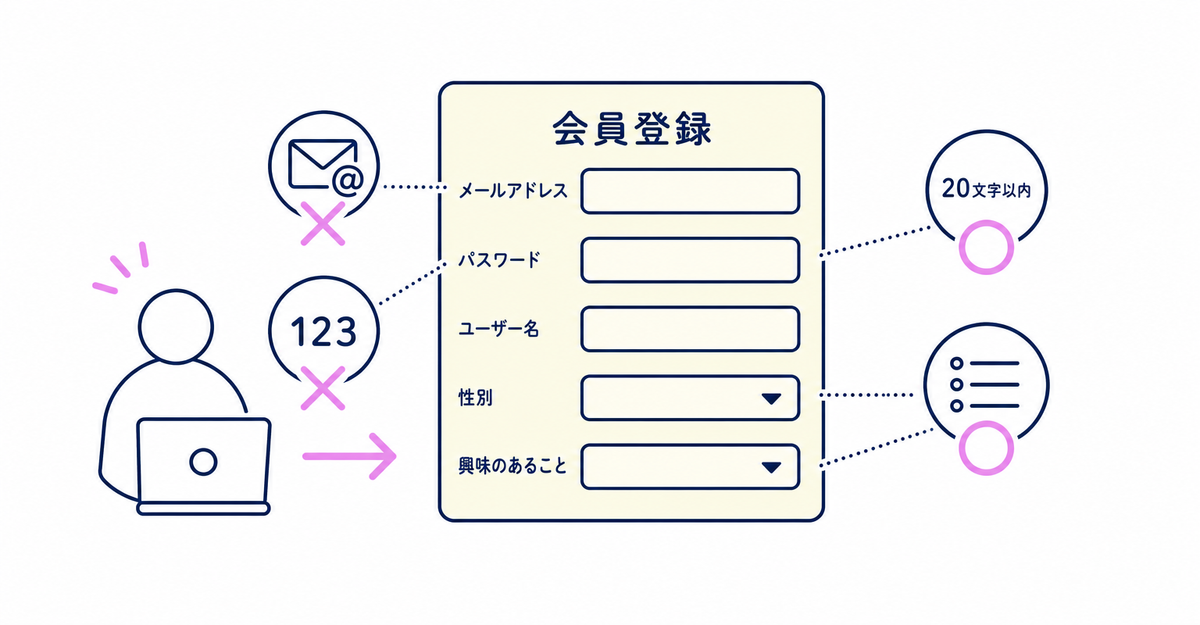
In short: Howdy's sign-up form field settings have no feature for setting an input format, such as email address or numbers only. What you can set for each field is a character limit, which caps the number of characters customers can enter. For fields where you want customers to pick from fixed values instead of typing freely, create a customer metafield with the choice list type. Customers then choose from options you prepare in advance.
Key points
- Sign-up form fields have no feature for setting an input format, such as email address or numbers only
- What you can set for each field is a character limit, which caps the number of characters customers can enter
- You can set character limits on these Shopify fields: name, phone number, postal code, prefecture, city, street address, building name, and room number. You can also set them on custom fields whose input type is single-line text or multi-line text area
- For fields where you want customers to pick from fixed values instead of typing freely, create a customer metafield with the choice list type
- For fields that collect a date, such as a birthday, create a customer metafield with the Date type
Is there a setting to require an input format (email address, numbers only, etc.) for sign-up form fields?
No. What you can set for each field in Howdy's sign-up form is a character limit, which caps the number of characters customers can enter. There's no setting that checks whether an entered value is in email address format or contains only numbers.
The field edit screen has a checkbox for turning on the character limit. When you check it, fields appear for the maximum number of characters and the error message. The screen has no setting that validates the format of the entered value itself.
Source: Howdy Help: "How to set character limits on sign-up form fields" (Japanese)
What can you specify in the character limit settings?
In the character limit settings, you can specify the maximum number of characters customers can enter and the error message shown when they go over the limit. You can set limits on two kinds of fields: Shopify fields and custom fields.
The Shopify fields you can set limits on are name, phone number, Address: postal code, Address: city, Address: street address and building name, Address: room number etc., and Address: company name. The custom fields you can set limits on are metafields whose input type is single-line text or multi-line text area. Address: prefecture and Address: country are chosen from a dropdown, so you can't set character limits on them. Here are the steps.
- Add the field. For a Shopify field, use the option to add a Shopify field. For a custom field, use the option to add a custom field (for a custom field, also enter the display label and description, and choose the customer metafield definition to use)
- Click the pencil (edit) icon on the field you added (for a custom field, choose single-line text or multi-line text area as the input type)
- Check the box to turn on the character limit
- Enter the maximum number of characters as half-width digits
- Enter an error message (optional) if you need one (if you save it blank, the default message appears)
- Finish by clicking Save for a Shopify field or Add for a custom field
You can change these settings as many times as you like from each field's pencil (edit) icon. The setup steps are in How to set character limits on sign-up form fields in Shopify: maximum length and error messages.
Source: Howdy Help: "How to set character limits on sign-up form fields" (Japanese)
Can you make customers pick from fixed values instead of typing freely?
Yes. When you create a customer metafield with the choice list type, customers choose from options you prepare in advance, and the field no longer accepts free text.
For example, to create a "Coffee preference" field, set the metafield type to List of single line text and add the items "Dark roast" and "Light roast." Customers then choose one of these two, and the field doesn't accept any other text. For fields that collect a date, such as a birthday, use the Date type. For fields collected with a checkbox, such as terms of service consent, use the True or false type. For fields that collect free text, such as a favorite color, use the Single line text type. After you create a metafield, add it to the sign-up form as a custom field to turn it into an input field.
The steps for creating metafields are in How to add a sign-up form to new customer accounts (Howdy). How to make fields required or optional is explained in How to make sign-up form fields required or optional in Shopify: customer metafield settings.
Source: Howdy Help: "① [Preparation] How to set up customer metafields"
Is there a way to add your own input format checks?
There's no built-in feature for this, but if the sign-up form's display timing is Before Login, you can add your own JavaScript to your theme code. If the display timing is After Login, this method isn't available.
Create a JavaScript file in your theme code, then add a condition with request.path contains "howdy-apps" to theme.liquid so the file loads. The steps are in How to add custom JavaScript to the sign-up form in Shopify: setup steps.
Source: Howdy Help: "How to apply custom CSS and JavaScript" (Japanese)
Related articles
- How to set character limits on sign-up form fields in Shopify: maximum length and error messages
- How to add custom JavaScript to the sign-up form in Shopify: setup steps
Frequently asked questions
Questions about new customer accounts? Ask us anytime.
We can help you design fields where you want to check the input format, or check entered values with Shopify Flow. Our dedicated team at Howdy creates customer metafields, sets up sign-up form fields, and places profile page blocks for you, free of charge.




