
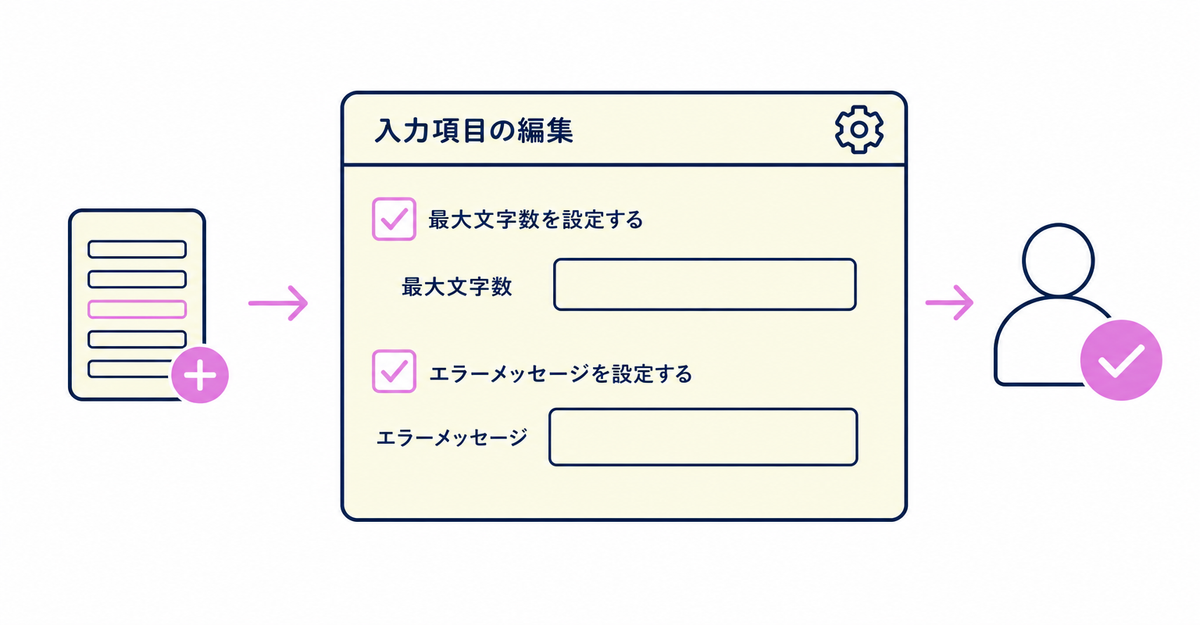
In short: In Howdy's sign-up form, you can set a maximum character count and an error message on Shopify fields, and on custom fields (metafields) whose input type is single-line text or multi-line text area. You set this with a checkbox on the field's edit screen, and you can change it anytime after saving. The steps for adding a field differ between Shopify fields and custom fields, but the character limit itself is set the same way for both.
Key points
- You can set character limits on standard Shopify fields such as name, phone number, and postal code, and on custom fields that use single-line text or multi-line text area
- You set the limit with the character limit checkbox on the edit screen, which you open from the field's edit icon, and enter the maximum number of characters in half-width digits
- The error message is optional. If you leave it blank, a default message is shown
- The steps for adding a field differ between Shopify fields and custom fields
- You can change a character limit as many times as you like from the field's edit icon
- You can also set a character limit on each address field, such as postal code, prefecture, and city
Where do you open the sign-up form settings page?
After installing Howdy, open the Registration Form Settings page in the app. You can add and edit fields on this page, and you save after making changes. If you're adding custom fields, create the customer metafields first.
For Shopify fields, you set the character limit from the edit icon after adding the field. For custom fields, you set it when you add the field, by choosing "Text (single line)" or "Text area (multiple lines)" as the input type.
Sources: Howdy Help: "③ Initial setup: Sign-up form" / Howdy Help: "How to set character limits on sign-up form fields" (Japanese)
Which fields can you set character limits on?
Supported fields are Shopify fields such as name, phone number, postal code, prefecture, city, street address and building name, and room number, plus custom fields whose input type is single-line text or multi-line text area.
Custom fields with a date, true/false, or selection list input type aren't single-line text or multi-line text area, so you can't set character limits on them. Even on a form that combines several Shopify fields and custom fields, you can set a character limit on each supported field.
| Field type | Examples of supported fields |
|---|---|
| Shopify fields | Name, phone number, postal code, prefecture, city, street address and building name, room number, and more |
| Custom fields (metafields) | Fields whose input type is single-line text or multi-line text area |
Whether a field is required or optional is a separate setting, covered in How to make sign-up form fields required or optional in Shopify: customer metafield settings. How to create customer metafields is explained in How to add a sign-up form to new customer accounts (Howdy).
Source: Howdy Help: "How to set character limits on sign-up form fields" (Japanese)
How do you set a character limit on a Shopify field?
On the app's Registration Form Settings page, click "Add Shopify field" to add the field, then click that field's edit icon, check "Limit character count", and enter the maximum number of characters in half-width digits.
The steps are as follows.
- On Howdy's Registration Form Settings page, add the Shopify field you want (for example, city).
- Click the edit icon of the field you added.
- Check the character limit checkbox.
- Enter the maximum number of characters in half-width digits.
- Enter an error message. If you save with it blank, a default message is shown.
- Save.
Set address fields (postal code, prefecture, city, street address and building name, room number) one at a time with the same steps. If you have several fields, open the edit icon for each field and repeat the steps.
Source: Howdy Help: "How to set character limits on sign-up form fields" (Japanese)
How do you set a character limit on a custom field (metafield)?
On the app's Registration Form Settings page, click "Add custom field" and choose "Text (single line)" or "Text area (multiple lines)" as the input type. You can then set the character limit on the screen for adding the field.
- On the Registration Form Settings page, click "Add custom field".
- Enter the field name and choose "Text (single line)" or "Text area (multiple lines)" as the input type.
- Check the character limit checkbox.
- Enter the maximum number of characters in half-width digits.
- Enter an error message. If you save with it blank, a default message is shown.
- Add the field and save.
To set character limits on several custom fields, repeat the same steps for each field.
Create the customer metafield definition itself beforehand in the Shopify admin under Settings > Metafields and metaobjects > Customers. The steps for creating the definition are in How to add a sign-up form to new customer accounts (Howdy).
Source: Howdy Help: "How to set character limits on sign-up form fields" (Japanese)
What changes for customers filling in the form after you set a character limit?
If a customer enters more than the maximum number of characters you set, an error message appears. If you entered an error message, that text is shown. If you saved with it blank, the default message is shown.
You can set a different message for each field, so you can tailor the guidance to the type of field.
Source: Howdy Help: "How to set character limits on sign-up form fields" (Japanese)
What if you already know the character range you want to allow?
You set the maximum for each field by checking "Limit character count" and entering a number in half-width digits. If you already have a specific character range in mind, check with Howdy support before setting it up.
Along with the maximum, you can enter an error message for each field to show when the limit is exceeded.
Source: Howdy Help: "How to set character limits on sign-up form fields" (Japanese)
How do the steps differ between Shopify fields and custom fields?
For both, you set the limit with the character limit checkbox on the field's edit screen. The difference is the steps before the character limit checkbox appears. For Shopify fields, you add one of the fields already available in the sign-up form, then open its edit icon.
For custom fields, you enter the field name and choose the input type (single-line text or multi-line text area), then check the character limit checkbox.
| Field type | Steps before the character limit appears |
|---|---|
| Shopify fields | Add the field → click the edit icon |
| Custom fields (metafields) | Add the field → choose single-line text or multi-line text area as the input type |
Source: Howdy Help: "How to set character limits on sign-up form fields" (Japanese)
Can you change a character limit later?
Yes. On the Registration Form Settings page, click the edit icon of the field, and you can edit the character limit for both Shopify fields and custom fields.
Change the character limit checkbox, the maximum number of characters, or the error message and save, and your changes replace the previous settings. After making changes, click the save button on the Registration Form Settings page.
Sources: Howdy Help: "How to set character limits on sign-up form fields" (Japanese) / Howdy Help: "③ Initial setup: Sign-up form"
How do you set character limits on address fields?
You can also set character limits on Shopify fields such as postal code, prefecture, city, street address and building name, and room number. Add the field on the Registration Form Settings page, then open the edit icon and check the character limit checkbox.
Enter the maximum number of characters in half-width digits, enter an error message if needed, and save.
Source: Howdy Help: "How to set character limits on sign-up form fields" (Japanese)
Can you use character limits on required fields such as terms of service consent?
You can set character limits on custom fields only when the input type is "Text (single line)" or "Text area (multiple lines)". A field that collects terms of service consent as a true/false value isn't included.
Keep consent as a true/false field, and set character limits on supported fields such as name, address, and free-text entries.
Source: Howdy Help: "How to set character limits on sign-up form fields" (Japanese)
Wrapping up
Once you've set up character limits, you can do these three things.
- Set a maximum number of characters for each Shopify field and custom field
- Show an error message tailored to the field when the limit is exceeded
- Review your character limits as many times as you like from the edit icon
You can add just the character limit later, even right after adding a field, so you can also add all your fields first and then put character limits only on the fields that need them.
Related articles
- How to make sign-up form fields required or optional in Shopify: customer metafield settings
- How to fix sign-up form errors in Shopify: check your metafield settings
Frequently asked questions
Try Howdy free for 14 days
Setting character limits on sign-up form fields lets you keep the number of characters customers can enter consistent across both Shopify fields and custom fields. You can set character limits and error messages on supported fields such as addresses and free-text entries. Our dedicated team at Howdy creates your customer metafields, configures your sign-up form fields, and places the blocks on your profile page for free.




