
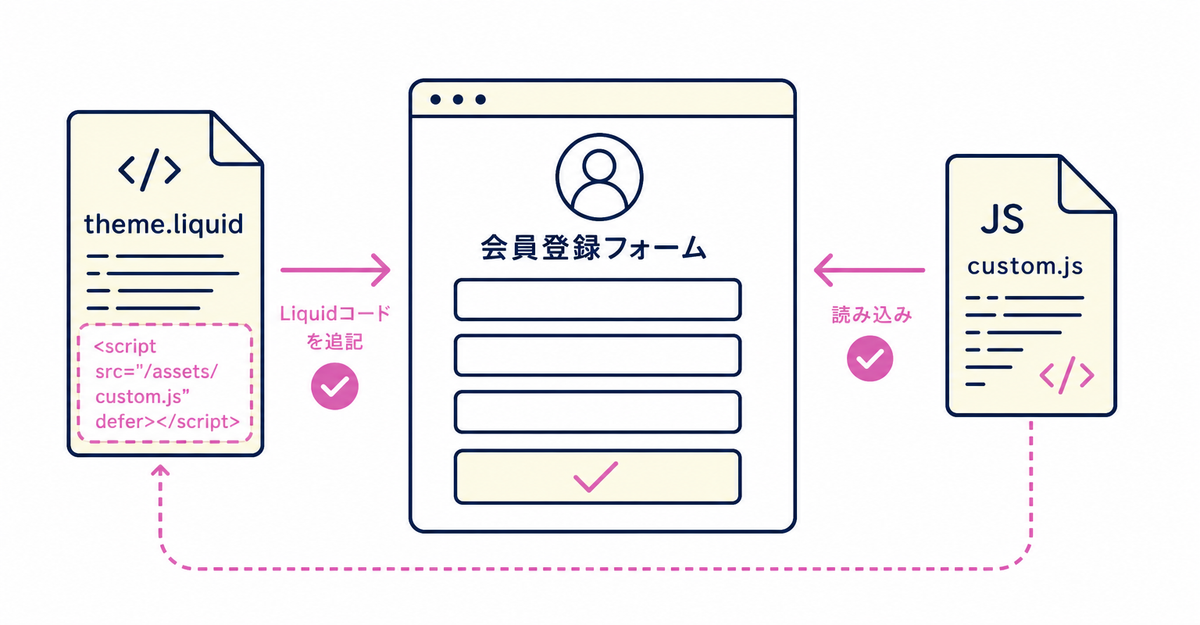
In short: To add custom JavaScript to Howdy's sign-up form, set the display timing to Before Login, create a JavaScript file in your theme code, and add a Liquid conditional to theme.liquid. You can't use this method when the display timing is After Login. If you also want to add custom CSS, you can do it as part of the same theme.liquid edit.
Key points
- Custom JavaScript is available only when the sign-up form's display timing is Before Login, not when it's After Login
- You create the JavaScript file in your theme code, and you can give it any name you like
- The Liquid code you add to theme.liquid uses the condition
request.path contains "howdy-apps" - This condition loads the JavaScript you add only on Howdy pages, so other pages in your store aren't affected
- You can use the same condition to add a custom CSS file as well
When can you add custom JavaScript?
You can add custom JavaScript only when the sign-up form's display timing is set to Before Login. If the display timing is set to After Login, you can't use this method.
There are two display timings: Before Login and After Login. With Before Login, customers go to the sign-up form after they click the login icon and enter their email address, a flow similar to legacy customer accounts. With After Login, customers go to the sign-up form after they've logged in, a flow closer to Shopify's new standard. You can add custom JavaScript only if you've chosen Before Login.
You check and change the display timing in General Settings in the app's admin. Before you move on to adding custom JavaScript, first check that the display timing is Before Login. The steps for setting up the sign-up form itself are in How to add a sign-up form to new customer accounts (Howdy).
Sources: Howdy Help: "How to apply custom CSS and JavaScript" (Japanese) / "Display timing of the new member sign-up form" (Japanese)
How do you create the JavaScript file?
Create your own JavaScript file in your theme code. You can choose any file name. The example in Howdy Help uses the name custom-howdy.js.
The name of the file you create must exactly match the file name in the code you add to theme.liquid in the next step. If you use a different file name, update the matching part of the code too. You edit the theme code in the same code editor you open when you embed the sign-up form in your theme. If you're also creating a custom CSS file, create it as a separate file from the JavaScript file, and use each file name where it belongs in the later steps.
Source: Howdy Help: "How to apply custom CSS and JavaScript" (Japanese)
Is there anything to prepare before editing your theme code?
When you edit theme code directly, it's recommended that you make a copy of your theme first. If something then displays in a way you didn't intend, you can go back to the copied theme and check it.
This preparation isn't only for adding custom JavaScript. It applies to any work that edits theme code directly, such as adding custom CSS or embedding Howdy's sign-up form in your theme. How theme customizations relate to new customer accounts is covered in What happens to your theme customizations when you move to new customer accounts?
Source: Howdy Help: "How to install the Howdy sign-up app on an unsupported theme" (Japanese)
How do you load the JavaScript file in your theme?
Add Liquid code to theme.liquid that loads the JavaScript file you created. This is the same theme.liquid file you add custom CSS code to. Use the following code to load the file:
{% if request.path contains "howdy-apps" %}
   <script src="{{ 'custom-howdy.js' | asset_url }}" defer="defer"></script>
{% endif %}
Replace custom-howdy.js in the code with the name of the file you actually created. You can add this code to theme.liquid in the same edit as the custom CSS code. The defer="defer" part is also included as-is in the code that Howdy Help provides.
Source: Howdy Help: "How to apply custom CSS and JavaScript" (Japanese)
Why does it load only on Howdy pages?
The condition {% if request.path contains "howdy-apps" %} limits where the JavaScript loads to Howdy pages only.
This condition loads the JavaScript only when the path of the page being visited contains the string "howdy-apps". As a result, the script you add applies only to the sign-up form page and doesn't affect how other pages in your store work. Unlike loading JavaScript through theme.liquid without a condition, this avoids affecting the loading speed and behavior of pages other than the sign-up form.
Source: Howdy Help: "How to apply custom CSS and JavaScript" (Japanese)
Can you add custom CSS the same way?
You can use the same theme.liquid condition, {% if request.path contains "howdy-apps" %}, as-is to add a custom CSS file as well.
Loading a CSS file uses different code from the JavaScript code. In Howdy Help's steps, the code for loading the JavaScript file and the code for loading the CSS file are covered together as part of the same theme.liquid edit. If you add both JavaScript and CSS, add each loading code next to each other in theme.liquid. There's no set order, so you can write either the JavaScript code or the CSS code first.
The steps from creating a CSS file to loading it are in How to apply custom CSS to the sign-up form in Shopify: step-by-step styling.
Source: Howdy Help: "How to apply custom CSS and JavaScript" (Japanese)
How do you check that the JavaScript you added is working?
After you save theme.liquid, open the sign-up form page and check that the JavaScript you added is applied. Check this on the sign-up form page with the display timing set to Before Login.
If it isn't applied, check that the file name you wrote in theme.liquid matches the name of the file you created in your theme code. If the file names don't match, the file the asset_url filter points to doesn't exist, so the JavaScript doesn't load. JavaScript added with the steps in this article doesn't affect the display of pages other than the sign-up form. You check custom CSS the same way. If you added JavaScript and CSS at the same time, check that both are applied.
Source: Howdy Help: "How to apply custom CSS and JavaScript" (Japanese)
The order of the setup steps
In Howdy Help's steps, you first confirm that the sign-up form's display timing is Before Login, then create the file in your theme code and load it in theme.liquid. Here are the steps in this article in order:
- Open General Settings in the app's admin and check that the sign-up form's display timing is Before Login
- If it's set to After Login, change it to Before Login in General Settings and save
- Before editing your theme code, make a copy of your theme so you can go back if something displays in a way you didn't intend
- Create your own JavaScript file in your theme code (for example, custom-howdy.js; you can choose any file name)
- Add Liquid code that matches the file name you created to theme.liquid, and save
- Open the sign-up form page and check that the JavaScript you added is applied
- If you're also adding custom CSS, add the CSS loading code next to it in the same theme.liquid
Sources: Howdy Help: "How to apply custom CSS and JavaScript" (Japanese) / "Display timing of the new member sign-up form" (Japanese) / "How to install the Howdy sign-up app on an unsupported theme" (Japanese)
Related articles
- How to apply custom CSS to the sign-up form in Shopify: step-by-step styling
- How to test a sign-up form in Shopify without affecting your live store: duplicate themes and development stores
Frequently asked questions
Try Howdy free for 14 days
Once you finish these steps, you can apply custom JavaScript only to the sign-up form page and add behavior without affecting other pages in your store. Our dedicated team at Howdy creates your customer metafields, sets up your sign-up form fields, and places blocks on your profile page for free.




