
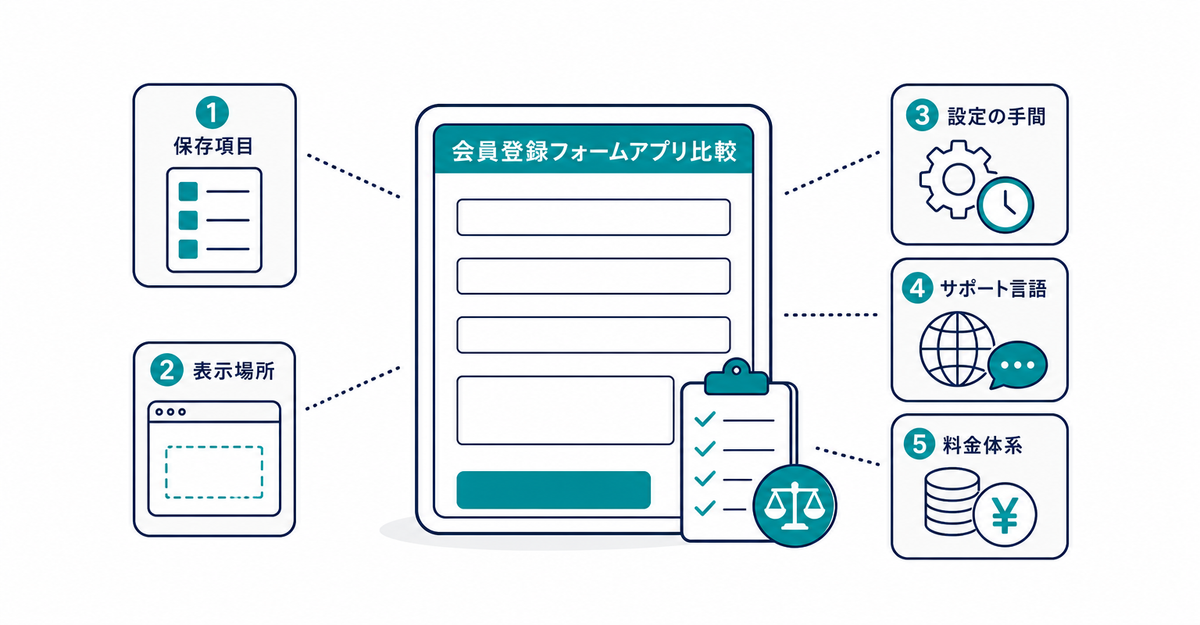
In short: When you compare sign-up form apps, look at five things: the fields you can store, where the form can appear, the setup effort, the support language, and the pricing model. First check that the app offers the fields you want to collect and the pages where you want the form to appear. Then compare the setup effort, the languages the support contact works in, and the pricing model.
Key points
- Customer metafield support determines whether an app can collect fields that aren't standard, such as birthdays and terms of service consent
- Each app supports only certain places for the sign-up form, such as the login page and the account page
- The range of supported themes determines whether you need to edit code
- Shopify doesn't support apps it didn't develop, so check the developer's support contact and the languages it works in
- Paid apps charge a monthly fee, a one-time fee, or usage-based fees, and many offer a free basic plan or a free trial
How do the fields you can store at sign-up differ between apps?
Shopify customer profiles store name, email address, phone number, language preference, multiple shipping addresses, and marketing consent as standard fields. Fields that aren't standard, such as birthdays and terms of service consent, are stored by creating customer metafields. When you compare sign-up form apps, check whether you can add customer metafields as fields and whether there's a limit on how many fields you can add. For the range of fields you can collect, see What standard sign-up collects in new customer accounts, and how to add fields.
Sources: Shopify Help Center: "Managing customers" / Howdy Help: "① [Preparation] How to set up customer metafields"
Where in your store can the sign-up form appear?
Howdy's sign-up form appears in a popup on the login page after you enable the app block in the theme editor. You can also add the collected fields to the profile page as an app block, so customers can edit their own details after they log in. When you compare apps, check whether each app lets customers see and edit their details on both the login page and the account page. For the setup steps, see How to add a sign-up form to new customer accounts (Howdy).
Sources: Howdy Help: "② [Initial setup] Embed the form in your theme" / Howdy Help: "④ [Initial setup] Profile Page"
How do you check the setup effort when comparing apps?
Check which themes the app supports. With a supported theme, you only need to enable the app block in the theme editor, and you don't need to edit any code. With an unsupported theme, you need to modify the code of the login button. As of September 2026, Howdy supports all themes, so you can set it up without editing code.
Source: Howdy Help: "How to install the Howdy sign-up app on unsupported themes" (Japanese)
How do you check the support language when comparing apps?
Shopify supports only the apps it develops itself. If you need support for an app made by a third-party developer, you contact the developer directly. To find the contact, go to Settings > Apps in the Shopify admin, open the menu for the app, and select Get support (「サポートを受ける」). You can also check the developer information on the app's Shopify App Store listing. If you check which languages the support contact works in before you subscribe, it's easier to get help with setup and issues.
Source: Shopify Help Center: "Getting support for apps"
How do you check the pricing model when comparing apps?
Paid apps charge a monthly fee, a one-time fee, or usage-based fees. Most paid apps offer a free basic plan or a free trial, so you can try them before you subscribe. When you compare apps, check whether there's a free trial and how long it lasts, and which pricing model fits your store's number of members and orders.
Source: Shopify Help Center: "Finding and choosing apps"
Related articles
- How to add a sign-up form to new customer accounts (Howdy)
- What is "Built for Shopify" for sign-up form apps? Badge criteria and how to find certified apps
Frequently asked questions
Questions about new customer accounts? Ask us anytime.
Even if you haven't decided which fields to collect at sign-up or where to show them, you can ask us about anything from sorting out the points to compare to designing customer metafields and setting up the sign-up form. Our dedicated team at Howdy creates customer metafields, sets up the sign-up form fields, and places the blocks on the profile page for you, free of charge.




