
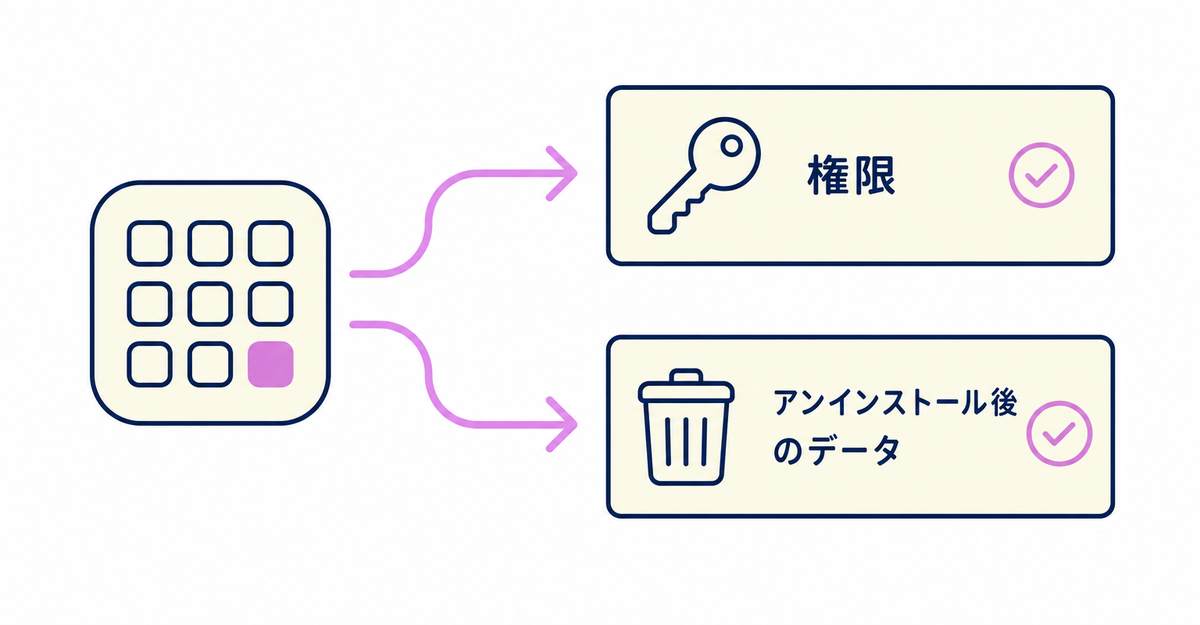
In short: You can check which customer data a Shopify app can view and edit on the Install app (「アプリをインストール」) screen shown at installation, and in the Activity and permissions (「アクティビティと許可」) section under Settings > Apps in the admin. When you uninstall an app, a request is sent to the app's developer 48 hours later to delete the personal information it collected about your customers.
When you're considering a switch to another sign-up form app, check how much customer data both your current app and the app you're switching to can access, at two points: before installation and after uninstalling. There are three things to check: the permissions screen built into Shopify, the Activity and permissions section for each app, and how data deletion requests work when you uninstall.
Key points
- Before installing an app, you can check on the Install app (「アプリをインストール」) screen which types of personal data it can view and which areas of your store it can view and edit
- You can check the permissions of installed apps in the Activity and permissions (「アクティビティと許可」) section under Settings > Apps in the admin
- Permissions that haven't been used in the past 30 days are shown as Unused access (「未使用のアクセス」)
- When you uninstall an app, a request is sent to the developer 48 hours later to delete your customers' personal information
- Some apps store data that can't be restored, so export your data before you uninstall
How do you check permissions when installing an app?
Check the permissions the app requests on the Install app (「アプリをインストール」) confirmation screen shown before installation. The permissions are split into two groups: View personal data (「個人データを表示する」) and View and edit store data (「ストアのデータを表示および編集する」).
View personal data covers types such as customers, store owners, and blog contributors. View and edit store data covers areas such as customers, products, orders, discounts, gift cards, marketing, store analytics, and the online store. You can expand each category to see the individual permissions being requested. The confirmation screen also shows a link to the developer's privacy policy, so you can check how your data will be handled before you install.
Source: Shopify Help Center: "Installing and setting up apps"
Can you check the permissions of an installed app later?
Yes. In the admin, go to Settings > Apps and click the app you want to check. The Activity and permissions (「アクティビティと許可」) section shows the areas of your store the app can view and edit, and the date the app last accessed each area.
Hover over an area name to see a detailed description of the access. Click a date under Recent activity (「最近のアクティビティ」) to see the number of view and edit requests in the past 30 days and the date of the last request. Permissions that haven't been used in the past 30 days are shown separately as Unused access (「未使用のアクセス」), so you can check whether any unnecessary permissions remain. Only third-party apps are tracked this way; apps made by Shopify aren't included. To see the types of personal data an app can view, check the Privacy (「プライバシー」) section on the same app page. In the Shopify mobile app, you can check the same information under Settings > Store settings (「ストア設定」) > Apps.
Source: Shopify Help Center: "Managing apps"
What happens to customer data when you uninstall an app?
Uninstalling an app revokes its access to your data. 48 hours after you uninstall, a request is sent to the developer to delete the personal information about your customers that the app collected while it was installed.
How customer data and metafields are handled in detail depends on the app. Some apps store data that can't be restored after uninstalling, so export the data you need before you uninstall. Even if you reinstall the app, your previous app settings and data might not be restored. To check how a specific app handles your data, review the app's listing on the App Store or contact the app's developer directly. The steps for switching from another sign-up form app are in How to migrate to Howdy from another sign-up form app.
Sources: Shopify Help Center: "Finding and choosing apps" / Shopify Help Center: "Uninstalling apps"
What if you want to delete the data of just one customer?
If a customer asks you to delete their personal data, request the deletion from the customer's profile in the Shopify admin. The same deletion request is then sent to every installed app that might have that customer's information.
Even if your store has several apps installed, you only need to request the deletion once. To confirm that the data was actually deleted, contact each app's developer directly. How to erase or delete the customer profile itself is covered in How to handle customers who want to close or delete their account in Shopify: erasing vs. deleting.
Source: Shopify Help Center: "Finding and choosing apps"
Related articles
- How to handle customers who want to close or delete their account in Shopify: erasing vs. deleting
- What are Shopify's new customer accounts? Differences from legacy accounts and what to do in 2026
Frequently asked questions
Questions about new customer accounts? Ask us anytime.
If you're moving from another sign-up form app, you can ask us about it, including how to carry over your existing customer metafields. Our dedicated team creates your customer metafields, sets up your sign-up form fields, and places blocks on your profile page for free.




