
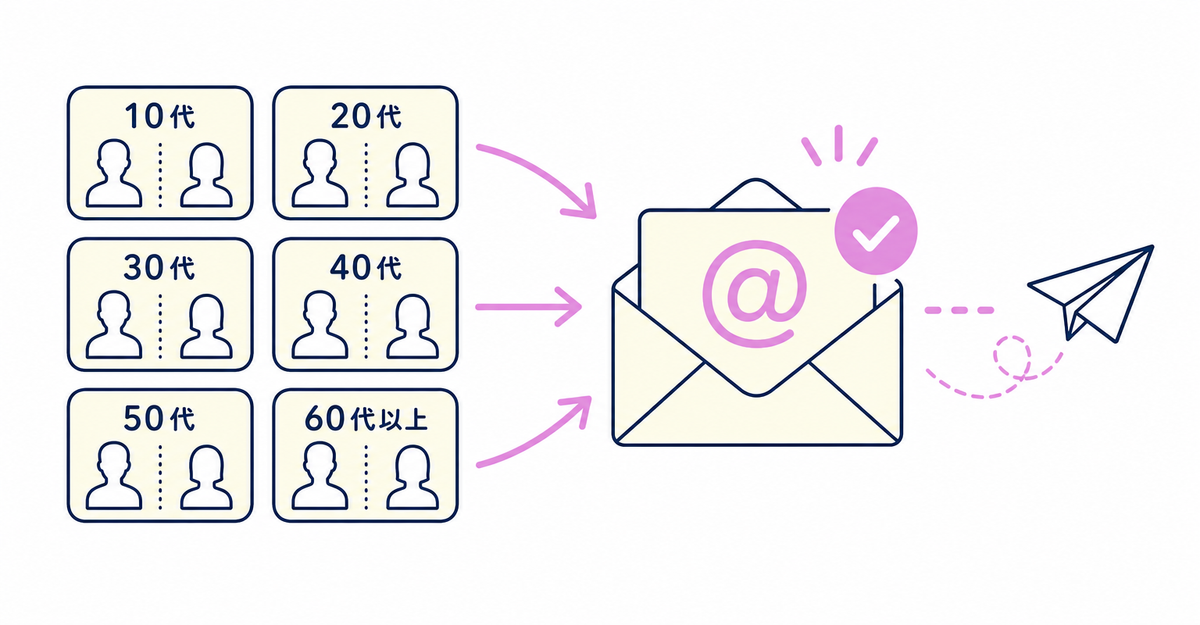
In short: Collect age group and gender with Howdy's sign-up form as customer metafields with preset choices. Then filter on those values in Shopify customer segments. This lets you build audiences for discounts and email campaigns by age group and gender without any additional apps. In the filter, enter the namespace and key of the metafield you created as they are, for example metafields.custom.age_group = '20s'. If you join age group and gender with AND, you can create combined segments, such as women in their 20s only, on the same screen.
Key points
- For age group and gender, set the customer metafield type to List of single line text and add the choices in advance with Add items under Validation
- In Howdy's sign-up form, add a custom field and select the two customer metafields you created
- On the segment creation screen, enter a filter that specifies the key after
metafields.custom. - Customer segments can use metafields of four data types: Date and time, Number, Text, and True or false
- A metafield with preset choices holds a single text value, so the operators are is equal to (=) and is not equal to (!=)
- You can use the segments you create as discount eligibility (up to 5 for an automatic discount and up to 100 for a discount code) and as the audience for targeted marketing campaigns
- You can join multiple conditions with
AND(meets all) orOR(meets any), so you can also create segments that combine age group and gender - The segment editor shows the number and list of customers who match the conditions, so after setup you can check the result with a test customer
How do you set up the sign-up form to collect age group and gender?
As preparation, go to Settings > Metafields and metaobjects > Customers > Add definition in the Shopify admin and create one customer metafield for age group and one for gender.
- Enter Age group as the name and select List of single line text as the type
- Under Validation, use Add items to add the choices one at a time (for example: Teens, 20s, 30s, 40s, 50s and over)
- Check the namespace and key (for example:
custom.age_group). If you save with the default, the key starts withcustom. - Follow the same steps to create a Gender definition (for example:
custom.gender, with the choices Male, Female, and Prefer not to say) - For both definitions, open the edit screen, set Customer account access to Allow read and write (「読み取りと書き込みの許可」), and save
- Many customers will choose the same age group or gender, so leave Unique values only (「一意の値のみ」) unchecked when you save the definitions
| Field | Example name | Example namespace and key | Example choices |
|---|---|---|---|
| Age group | Age group | custom.age_group | Teens, 20s, 30s, 40s, 50s and over |
| Gender | Gender | custom.gender | Male, Female, Prefer not to say |
After creating the definitions, open Registration Form Settings in the app's admin, add a custom field, select the two customer metafields you created, and set whether each is required or optional and its display label. Metafields with preset choices also appear as drop-down menus on the Howdy sign-up form, so customers only need to pick from the choices.
Sources: Howdy Help: "[Preparation] How to set up customer metafields" / Howdy Help: "Enable Metafield's "Read and Write" access" / Howdy Help: "[Initial setup] Registration form"
The initial setup of the sign-up form (from creating customer metafields to embedding the form in your theme) is explained in How to add a sign-up form to new customer accounts (Howdy).
How do you create customer segments based on the collected age group and gender?
In the Shopify admin, go to Customers > Segments and click Create segment. In the filter field, enter a condition that uses the metafield's namespace and key as they are.
- To filter customers in their 20s:
metafields.custom.age_group = '20s' - To filter female customers:
metafields.custom.gender = 'Female' - Check the condition, click Save, and name the segment
Customer segments can use metafields of four data types: Date and time, Number, Text, and True or false. Number and Text can also be used as lists. For a single text value created with preset choices, like age group and gender, use is equal to (=) and is not equal to (!=). Contains (CONTAINS) and does not contain (NOT CONTAINS) are operators for text that holds a list of values. The birth month example in Howdy Help uses the same form: metafields.custom.birth_month = 'July'.
Sources: Howdy Help: "How to collect birth months and issue birthday discount coupons" (Japanese) / Shopify Help Center: "Creating customer segments" / Shopify Help Center: "Metafield customer segment filters"
Setup examples that use other fields collected with the sign-up form (birthdays, addresses, and terms of service consent) are in 7 ways to use birthdays, addresses, and consent collected at sign-up (Shopify new customer accounts).
Can you create a segment that combines age group and gender?
Yes. Join multiple conditions with AND (narrows to customers who meet all of the conditions) or OR (widens to customers who meet any of the conditions). A common approach is to widen the range with OR for a field with several choices, such as age group, and to join a different metafield, such as gender, with AND. To filter customers who are in their 20s and female, enter the following.
metafields.custom.age_group = '20s' AND metafields.custom.gender = 'Female'
When you combine three or more conditions, conditions joined with AND are processed before OR, so use parentheses when you want to change the order.
(metafields.custom.age_group = '20s' OR metafields.custom.age_group = '30s') AND metafields.custom.gender = 'Female'
Source: Shopify Help Center: "Customer segment components"
Can you use age and gender segments as discount eligibility?
Yes. On the discount creation screen, set eligibility to Specific customer segments, select the segments you want, and click Add. There's a limit on how many segments you can select: up to 5 per automatic discount and up to 100 per discount code.
If you select each segment you created for an age group and gender, you can create separate discounts for different combinations, such as a discount code sent only to female customers in their 20s, or an automatic discount for all customers in their 40s and over. You can also select the combined age group and gender segment from the previous section as it is.
Source: Shopify Help Center: "Managing and editing discounts"
Can you narrow email campaign recipients with age and gender segments?
Yes. Customer segments can be used to create targeted marketing campaigns with personalized messages. When you create an email campaign in Shopify Messaging, open the segment drop-down menu in the To field and select one of the following.
- To send to all email subscribers: select All email subscribers
- To send only to customers filtered by age group and gender: select a customer segment you've already created
- To create a new segment on the spot from the campaign creation screen: click Create segment
If you select segments split by age group and gender as recipients, you can send product emails for customers in their 20s and for customers in their 40s, each with different content. By adding preset choice values, you can also create segments that combine age group and gender with other fields (such as region of residence or number of purchases) using the same steps.
How to show a metafield with preset choices, such as a membership tier, on the account page is explained in How to show membership tiers on the account page in new customer accounts.
Sources: Shopify Help Center: "Customer segmentation" / Shopify Help Center: "Creating email marketing campaigns using Shopify Messaging"
How do you test the setup?
Create a test customer, enter age group and gender values in the metafields, and check that the customer is included in the segment you created. Click Apply in the segment editor to show the customers who match the conditions.
To open a segment, go to Customers > Segments in the admin and click the segment in the list. When you click Apply, matching customers are listed below the editor and the number of customers appears above it. The Shopify Help Center recommends reviewing this customer list to confirm that it includes the customers you expect before you make changes.
New customers who meet the conditions are added to the segment automatically. Customers who no longer meet the conditions are removed from the segment automatically. The birthday coupon steps in Howdy Help also enter a value in a test customer's birth month metafield and check that the customer is added to the segment.
Sources: Shopify Help Center: "Managing customer segments" / Howdy Help: "How to collect birth months and issue birthday discount coupons" (Japanese)
Related articles
- 7 ways to use birthdays, addresses, and consent collected at sign-up (Shopify new customer accounts)
- How to add a sign-up form to new customer accounts (Howdy)
Frequently asked questions
Try Howdy free for 14 days
To set up campaigns for segments based on age group and gender, start by creating customer metafields and adding fields to the Howdy sign-up form. Our dedicated team creates customer metafields, sets up sign-up form fields, and places blocks on the profile page for you for free.




