
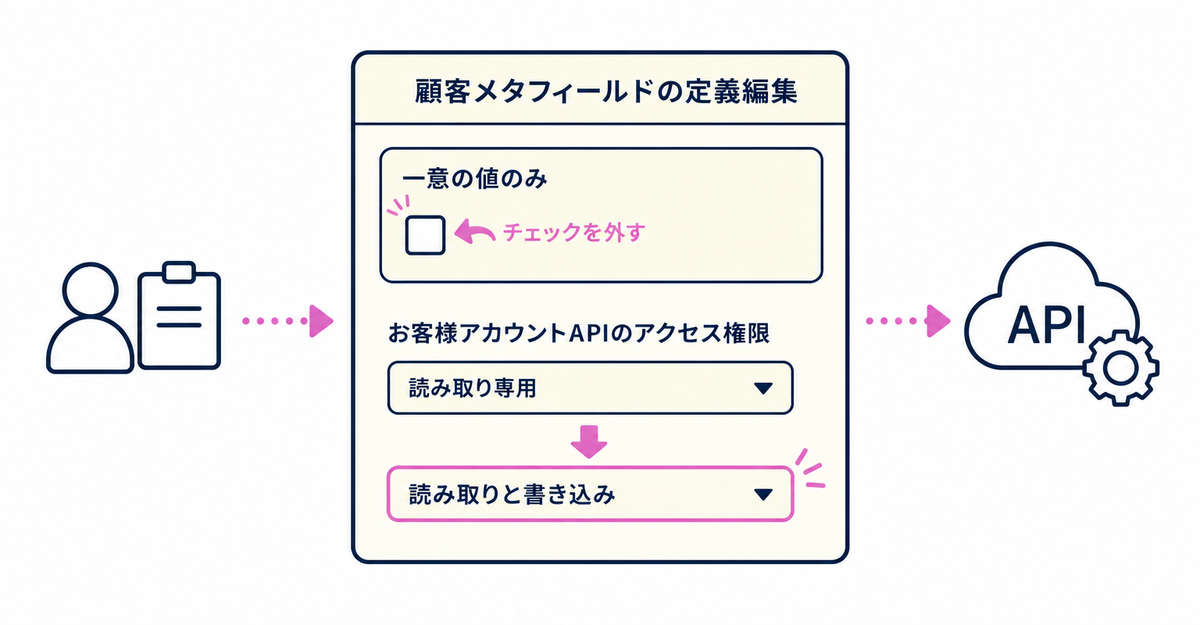
In short: When customers can't sign up through the Howdy sign-up form, the error comes from one of two settings on the customer metafield definition: Unique values only (「一意の値のみ」) and Customer Account API access. Fixing each setting in the Shopify admin resolves the error.
After following the steps in this article, you'll be able to tell the cause of each of the two error messages shown on the sign-up form and fix it from the Shopify admin. Both errors come from settings on the edit page of the customer metafield definition, so the fix itself isn't difficult. The steps for creating a new customer metafield are in How to add a sign-up form to new customer accounts (Howdy).
Key points
- The error "Value is already assigned to another metafield" is caused by the Unique values only (「一意の値のみ」) setting on the customer metafield
- The errors saying that Customer Account access isn't enabled or that the metafield is read-only are caused by the Customer Account API access setting
- You can fix both Unique values only (「一意の値のみ」) and the access setting on the definition's edit page under Settings > Metafields and metaobjects > Customers
- If your sign-up form uses multiple custom fields, you need to check each field the same way
- Neither error is a bug in the Howdy app; both come from the metafield settings in Shopify
What is the "Value is already assigned to another metafield" error?
It's caused by the Unique values only (「一意の値のみ」) setting being enabled on the customer metafield linked to a custom field on the sign-up form. This setting is part of the metafield definition in Shopify, not a setting in the Howdy app.
The English message is "Value is already assigned to another metafield. Choose a different value to ensure it remains unique." The error happens on fields where multiple customers are expected to have the same value, such as birth month or prefecture. The first few customers may be able to sign up, but from the second customer who enters the same value onward, customers can't sign up.
How do you fix this error?
Identify the metafield causing the error and uncheck Unique values only (「一意の値のみ」). Howdy Help explains that this isn't a bug in the app and advises checking the metafield settings in Shopify.
- In the Shopify admin, open Settings
- Select Metafields and metaobjects > Customers
- Open the definition of the custom field used on your sign-up form
- On the definition's edit page, find Unique values only (「一意の値のみ」) and uncheck it
- Click Save in the top right
Sources: Howdy Help: Customers can't sign up / How to fix the "Value is already assigned to another metafield" error (Japanese) / Howdy Help: (1) [Preparation] How to set up customer metafields
What is the "Customer Account access is not enabled" error?
It's caused by the Customer Account API access on the customer metafield definition not being set to read and write. Without this setting, the Howdy sign-up form can't write values to that metafield.
For this cause, one of two messages appears: "Customer Account access is not enabled for this metafield. Enable 'Read and write' in the Shopify admin." or "This metafield is read-only. Change it to 'Read and write' in the Shopify admin."
The sign-up form writes the values customers enter to the matching customer metafields. If the access is left as Read only (「読み取り専用」) or isn't set, this write fails and the sign-up doesn't complete.
Source: Howdy Help: Enable Metafield's "Read and Write" access
How do you change the access setting?
Identify the metafield causing the error and change its access to read and write. The change takes effect as soon as you save, and you don't need to re-add the sign-up form or change any code.
- In the Shopify admin, open Settings
- Select Metafields and metaobjects
- Under Customers, select the field showing the error
- Check Allow read and write (「読み取りと書き込みの許可」)
- Click Save
Source: Howdy Help: Enable Metafield's "Read and Write" access
How do you check when you use multiple custom fields?
If your sign-up form has multiple custom fields, check both Unique values only (「一意の値のみ」) and the Customer Account API access for each field. Even if you fix one field, the error occurs on any other field whose settings haven't been fixed.
Stores that combine multiple fields on the sign-up form, such as birthday, prefecture, and gender, are more likely to miss a field. Check Unique values only (「一意の値のみ」) and the Customer Account API access by opening each field's definition one by one under Settings > Metafields and metaobjects > Customers. Common questions and a list of where each setting is are in Sign-up forms for Shopify new customer accounts: 14 frequently asked questions.
Sources: Howdy Help: Customers can't sign up / How to fix the "Value is already assigned to another metafield" error (Japanese) / Howdy Help: Enable Metafield's "Read and Write" access
What should you check when creating fields to prevent these errors?
When you create a new customer metafield, save it with Unique values only (「一意の値のみ」) turned off and set the Customer Account API access to read and write. This prevents both errors in this article before they happen.
Check Unique values only (「一意の値のみ」) and the Customer Account API access when you create the definition, on its edit page under Settings > Metafields and metaobjects > Customers. Checking these two points at creation saves you from having to respond only after customers contact you saying they can't sign up once the form is live.
When you create a new field where multiple customers may enter the same value, such as birthday, prefecture, or categories of interest, pay particular attention to the Unique values only (「一意の値のみ」) setting. If it's unchecked when you create the field, you won't need to deal with this error later.
Sources: Howdy Help: Customers can't sign up / How to fix the "Value is already assigned to another metafield" error (Japanese) / Howdy Help: Enable Metafield's "Read and Write" access
How to check both settings at once
Not only when a sign-up error occurs: checking each customer metafield used on your sign-up form one by one lets you review the causes of both errors in this article together.
- Choose one customer metafield used on your sign-up form
- Open its definition under Settings > Metafields and metaobjects > Customers and check that Unique values only (「一意の値のみ」) isn't checked
- On the same definition's edit page, check that Allow read and write (「読み取りと書き込みの許可」) is enabled
- Repeat steps 1 to 3 for every field used on your sign-up form
Sources: Howdy Help: Customers can't sign up / How to fix the "Value is already assigned to another metafield" error (Japanese) / Howdy Help: Enable Metafield's "Read and Write" access
How do you check whether the error is fixed?
After saving the settings, do a test sign-up through the sign-up form and check that it completes without an error message. If you fixed the Unique values only (「一意の値のみ」) error, test again as if multiple customers were entering the same value to be sure.
If you fixed the Customer Account API access, reopen the app's admin after the change and also check that the "Customer Account access is not enabled" message is gone. Delete the customer data used for testing once you've finished checking. Testing once after fixing all definitions saves you time.
Sources: Howdy Help: Customers can't sign up / How to fix the "Value is already assigned to another metafield" error (Japanese) / Howdy Help: Enable Metafield's "Read and Write" access
Related articles
- How to add a sign-up form to new customer accounts (Howdy)
- Sign-up forms for Shopify new customer accounts: 14 frequently asked questions
Frequently asked questions
Try Howdy free for 14 days
After following these steps, you'll be able to tell the cause of errors on your sign-up form and fix them yourself from the Shopify admin. Our dedicated team creates customer metafields, sets up the sign-up form fields, and places blocks on the profile page for you for free.




