
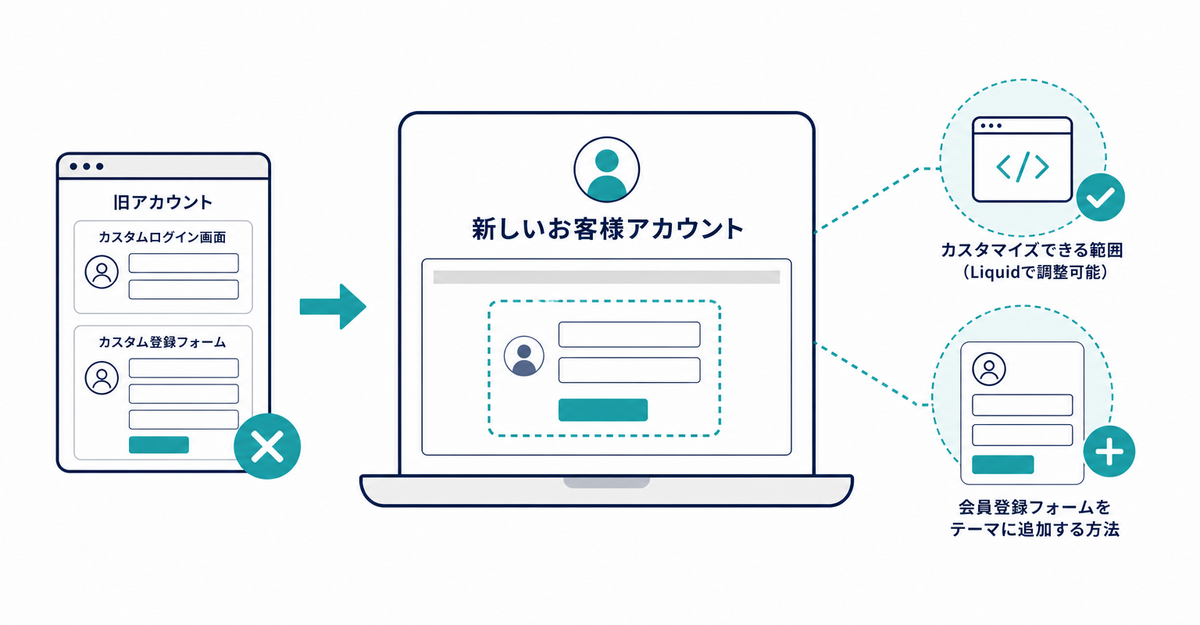
In short: When you move to new customer accounts, custom login pages and sign-up forms built with Liquid in your theme stop working, and legacy customer account URLs automatically redirect to new customer accounts. On the sign-in page, you can customize only the logo, colors, fonts, and brand images. Customer account pages are customized in the checkout and accounts editor, where you add features with blocks.
Key points
- Legacy customer account URLs (such as
/account/login) automatically redirect to new customer accounts - If you built your own login or sign-up experience in a modal or on a separate page, remove that customization from your theme before the upgrade
- You can't add customization blocks to the sign-in page. You can change the logo, colors, fonts, and brand images
- Customer account pages are customized in the checkout and accounts editor, and blocks let you add features to existing pages or add new pages
- As of September 8, 2026, the sign-up form supports all themes and appears when you enable the app block in the theme editor
What happens to your theme customizations when you migrate?
After the upgrade, Shopify automatically redirects legacy customer account URLs (such as /account/login) to new customer accounts. If you built your own login or sign-up experience in a modal or on a page separate from the legacy account templates, you might need to edit your theme and remove that customization before the upgrade.
Source: Shopify Help Center: "Upgrading to customer accounts from legacy customer accounts"
How much can you customize the sign-in page?
You can't add customization blocks to the sign-in page. In the checkout and accounts editor, you can change the logo, colors, fonts, and brand images on the sign-in page.
Source: Shopify Help Center: "Upgrading to customer accounts from legacy customer accounts"
How much can you customize customer account pages?
Most customization of customer account pages (such as the profile and order list) and the login page is done in the checkout and accounts editor.
| Customization | What you can do |
|---|---|
| Branding | Edit the shared branding settings to change the branding of customer account pages |
| Logo and colors | Customize the logo image and size, and the colors |
| Login page style | Set a logo and colors just for the login page, and add a hero image shown on desktop |
| Menu | Edit the menu on account pages |
| Blocks | Add features to existing customer account pages, or add new pages |
Howdy's profile page features (metafield blocks and banner blocks) use this block system to add displays such as membership tiers and birthday coupons.
Source: Shopify Help Center: "Customizing customer accounts"
What do you do to add a sign-up form to your theme?
In Howdy's app settings, go from Theme Embed to the theme editor, enable the app embed (app block), and save. As of September 8, 2026, all themes are supported.
If the form doesn't appear when you click the login button after saving, find the <a> tag (or similar) for the login button on desktop and on mobile, and add the specified class in the code editor. This step requires editing code, so it's a task for developers. Before editing, duplicate your theme so you can restore the original.
Sources: Howdy Help: "② [Initial Setup] Embed the form in your theme" / Howdy Help: "How to install the Howdy sign-up app on an unsupported theme" (Japanese)
Related articles
- What are Shopify's new customer accounts? Differences from legacy accounts and what to do in 2026
- 5 things to check before migrating from legacy customer accounts
Frequently asked questions
Questions about new customer accounts? Ask us anytime.
Ask us about how to handle the custom login pages and sign-up forms in your theme, and what you can customize after the migration. Our dedicated team creates customer metafields, sets up sign-up form fields, and places blocks on the profile page for free.




