
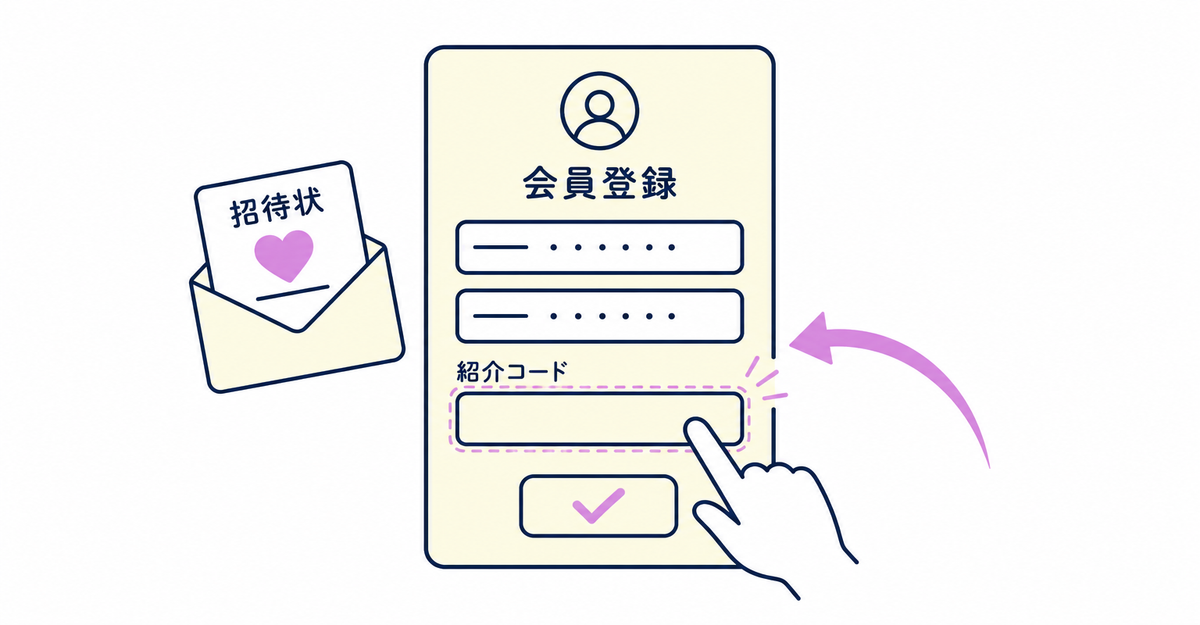
In short: To collect referral codes with Howdy's sign-up form, create a customer metafield with the Single line text type and add it to the sign-up form as a custom field. The referral code a customer enters is saved as the value of that customer metafield. If you combine this with the Customer created trigger in Shopify Flow, you can also notify staff automatically about sign-ups that include a referral code.
Key points
- First, create the customer metafield that will store the referral code. Use the Single line text type
- Add the referral code to the sign-up form as a custom field, and choose whether it's required
- The field won't appear on the sign-up form unless the metafield's Customer account access is set to read and write
- If the referral code field uses the Text (single line) input type, you can set a character limit that matches the length of your codes
- You can show the referral codes customers enter in an editing block on the profile page
- If you combine the Customer created trigger in Shopify Flow with a condition, staff get an email only for sign-ups that include a referral code
- You can also create a separate sign-up form for a campaign page that contains only the referral code field
- This setup on its own doesn't give rewards or apply discounts for referral codes
What do you need to prepare to collect referral codes on the sign-up form?
Create a customer metafield with the Single line text type to store the referral code. After you create it, set its Customer account access to read and write and save.
The setup has three stages, and each one happens in a different place: preparation, form setup, and notification setup (optional).
| Step | Where to set it up | What to do |
|---|---|---|
| ① Preparation | Settings > Metafields and metaobjects > Customers | Create a customer metafield for the referral code and set Customer account access to read and write |
| ② Form setup | Howdy's sign-up form | Add the metafield as a custom field and choose whether it's required |
| ③ Notification setup (optional) | Shopify Flow | Combine the Customer created trigger with a condition to notify staff when a referral code is entered |
In the Shopify admin, go to Settings > Metafields and metaobjects > Customers. Click Add definition and create the customer metafield that will store the referral code. Name it "Referral code" and choose Single line text as the type, because it accepts any text. Choose a namespace and key in advance, such as custom.referral_code. This makes the metafield easier to find when you specify it in a Shopify Flow condition later.
Open the edit page of the definition you created, set Customer account access to Allow read and write (「読み取りと書き込みの許可」), and save. If this setting is still Read only (「読み取り専用」), the settings page of Howdy's sign-up form shows the message Customer Account access is not enabled for this metafield (「このメタフィールドのCustomer Accountアクセスが有効ではありません」). In that case, you can't add the field to the form.
Sources: Howdy Help: "① [Preparation] How to set up customer metafields" / Howdy Help: Enable Metafield's "Read and Write" access
How do you add the referral code field to the sign-up form?
Open Howdy's Registration Form Settings page. Choose Add custom field, then select the referral code customer metafield you created earlier. On the screen where you add the field, you can enter a display label and a description, and you can choose whether the field is required.
Enter a display label such as "Referral code (if you have one)" and placeholder text such as "Enter your referral code if you have one." This way, customers who don't have a referral code also understand what the field is for. After you add the field, check the order of the fields and save.
If you haven't set up the sign-up form yet, first complete steps 1–3 in How to add a sign-up form to new customer accounts (Howdy).
Sources: Howdy Help: "③ [Initial setup] Sign-up form" / Howdy Help: "How to collect birth months and issue birthday discount coupons" (Japanese)
Can you limit the number of characters in a referral code?
Yes. For a custom field that uses the Text (single line) input type, open the field's edit screen and check Limit character count. Then enter the maximum number of characters in half-width digits and save.
If the referral codes your company issues have a fixed number of characters, set the maximum to that same number. Customers then see an error message when they enter a code with a different number of characters. You can write your own error message. If you leave it blank, the default message appears. When you're done, click Add.
Source: Howdy Help: "How to set character limits on sign-up form fields" (Japanese)
Can you collect other fields the same way as referral codes?
Yes. You can add a customer metafield as a custom field for more than referral codes. The same method works for fields such as birthdays, favorite colors, and consent to your terms of service. The setup steps are the same.
A metafield with the Date type becomes a birthday field. True or false becomes a consent checkbox. Single line text becomes a free-text field like a referral code. Whatever the field, first decide the type of the metafield that will store the value, then create the definition.
Source: Howdy Help: "① [Preparation] How to set up customer metafields"
Can you show the collected referral code on the profile page?
Yes. In the app's admin, go to Blocks and click Create Block. Choose Customer metafield as the type, then use Add metafield to select the referral code definition.
When you add the referral code field, check Prevent customers from editing (editing disabled) so that customers can't change the value. Set the status to Active and save. Next, go to Settings > Checkout in the Shopify admin, click Customize, and open the Profile Page. Use Add App Block to place this block, enter the App Block ID shown in the app's admin, and save. Customers can then see the referral code they entered at sign-up on their profile page.
Source: Howdy Help: "④ [Initial setup] Profile page"
Can you notify staff automatically when a customer enters a referral code?
Yes. In Shopify Flow, you build a workflow from three parts: a trigger, conditions, and actions. The Customer created trigger runs when a new customer profile is created. Howdy's help explains how a workflow runs on the Customer created trigger when a new customer is added through the sign-up form.
The trigger doesn't run when someone edits an existing customer profile. Add one condition to this trigger so that the workflow continues only when the referral code metafield isn't empty. Then use the Send internal email action to notify a staff email address that you choose in advance. If you also want to add a customer tag to the customer, you can add the Add customer tags action as well.
For the basics of combining triggers and actions in Shopify Flow, see How to automate post-sign-up tasks with Shopify Flow: tagging and metafield updates.
Sources: Shopify Help Center: "Customer created" / Howdy Help: "How to add birth-month customer tags for birthday campaigns" (Japanese) / Shopify Help Center: "Shopify Flow actions" / Shopify Help Center: "Creating workflows in Shopify Flow"
Can you use a separate referral code form just for a campaign page?
Yes. In the sign-up form admin, you can create a new form that contains only the referral code field, separate from your regular sign-up form. You choose which form opens by specifying its form ID.
In the theme editor, add the Sign-up form block and set the button's data-form attribute to the ID of the form you created. That button then opens only the referral code form. For example, if you specify data-form="b3d0bk", only the button you placed on the campaign page opens this form.
If you want to adjust how your forms are combined, you can contact Howdy support (support@macro-micro.co.jp).
Source: Howdy Help: "Setting up multiple forms" (Japanese)
Related articles
- How to automate post-sign-up tasks with Shopify Flow: tagging and metafield updates
- How to make sign-up form fields required or optional in Shopify: customer metafield settings
Frequently asked questions
Try Howdy free for 14 days
You can set up the whole flow, from creating the referral code customer metafield to adding the field to the sign-up form and showing it on the profile page. With our free setup service, our dedicated team at Howdy creates the customer metafields, sets up the sign-up form fields, and places the profile page blocks for you.




