
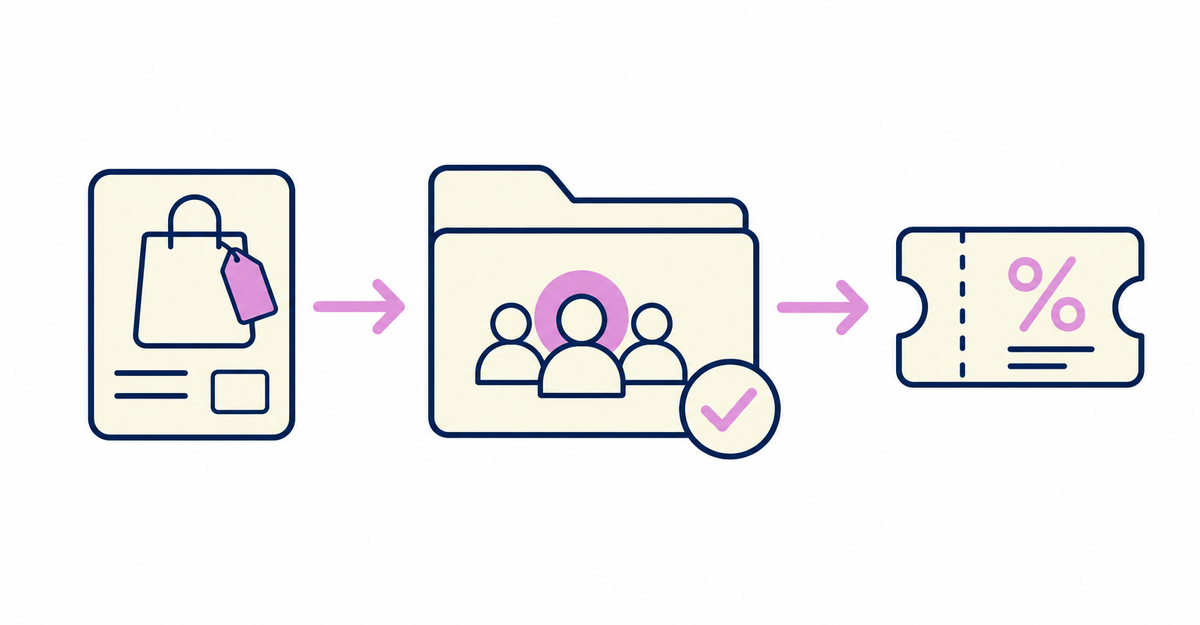
In short: In Shopify customer segments, use the Products purchased (products_purchased) filter with the MATCHES operator and a product ID (id) or product tag (tag) to find customers who bought specific products. You can use the segment you create as the eligibility for a discount code or automatic discount, or as the recipients of a Shopify Messaging email campaign, so you can set up coupon delivery without installing any additional apps.
Howdy is an app that adds a sign-up form to Shopify's new customer accounts. You can also combine the customer metafields collected with the sign-up form with the purchased product conditions covered in this article to build segments.
After following the steps in this article, you'll be able to create a segment of only the customers who bought specific products or products with a specific product tag, and use that segment to issue discount codes and send email campaigns. Shopify's built-in features evaluate the product conditions, so you don't need any additional apps or extra customer data. You can fine-tune which products count by combining product IDs, tags, purchase quantities, and time periods.
Key points
- Use the Products purchased (products_purchased) customer segment filter with the MATCHES operator and a product ID (id) to find customers who bought specific products
- Use the tag parameter to find, in one go, customers who bought products with a specific product tag
- Combine the quantity, sum_quantity, and date parameters to add purchase quantity and time period to the condition
- Create segments in the query editor under Customers > Segments > Create segment
- From the segment details page, use Use segment to create discounts and email campaigns for the segment
- You can target up to 5 segments per automatic discount and up to 100 segments per discount code
How do you set a condition for customers who bought a specific product?
Use the Products purchased (products_purchased) customer segment filter. Combining the id parameter, which specifies a product, with the MATCHES operator creates a condition that includes customers who bought a specific product.
To specify one product ID, use the format id = product ID. To specify multiple product IDs, use the format IN (id1, id2, id3), with the IDs separated by commas inside parentheses. You can specify up to 500 product IDs in one condition. On the segment creation screen, you can enter product IDs by selecting products by name or image.
The condition that includes customers who bought product ID 2012162031638 is products_purchased MATCHES (id = 2012162031638).
Source: Shopify Help Center: "Shopify customer segment filters"
Can you filter multiple products at once by product tag?
Yes. If you enter a product tag string in the tag parameter, you can find, in one go, customers who bought any product with that tag, without specifying each product one by one. Specify the tag value as a single string.
The condition that includes customers who bought products with the product tag "red" is products_purchased MATCHES (tag = 'red').
Source: Shopify Help Center: "Shopify customer segment filters"
Can you filter customers who haven't bought a specific product?
Yes. The NOT_MATCHES operator narrows the segment to customers who haven't bought products with the specified product IDs or product tags. When you exclude multiple product IDs, you can also specify them together with IN, separated by commas inside parentheses.
The condition that includes customers who have bought neither product ID 2012162031638 nor 1012132033639 is products_purchased NOT MATCHES (id IN (2012162031638, 1012132033639)). With this condition, you can also create a segment of customers who haven't bought a specific product yet.
Source: Shopify Help Center: "Shopify customer segment filters"
Can you add purchase quantity and time period to the condition?
Yes. The quantity parameter specifies the quantity of a product bought in each order, and sum_quantity specifies the total quantity of a product bought across all orders.
The date parameter specifies the purchase date. You can use an absolute date (YYYY-MM-DD), a date offset (such as -30d or -3m, a number combined with the unit d, w, m, or y), or BETWEEN to specify a range. If you don't specify the date parameter, purchases from all time are included.
The condition that includes customers who bought a total of 3 or more products with the product tag "product_tag" in the last 90 days is products_purchased MATCHES (tag = 'product_tag', sum_quantity >= 3, date >= -90d).
| Parameter | What it specifies | Example value |
|---|---|---|
| id | Product ID | id = 2012162031638 |
| tag | Product tag | tag = 'red' |
| quantity | Quantity bought in a single order | quantity >= 2 |
| sum_quantity | Total quantity bought across all orders | sum_quantity >= 3 |
| date | Purchase date | date >= -90d |
To create segments with other conditions, such as abandoned carts or dormant customers, see How to segment customers who abandoned their carts in Shopify and send coupons: abandoned checkout date.
Source: Shopify Help Center: "Shopify customer segment filters"
What are the steps to create a customer segment?
You create a customer segment by building a ShopifyQL (Shopify Query Language) query in the query editor under Customers in the Shopify admin. The steps are as follows.
- In the Shopify admin, go to Customers
- Click Segments
- Click Create segment to open the query editor
- Select the Products purchased filter, then set the parameters, operator, and values
- Click Run query (or ▹ Run), then check the customers who match the condition in the list below the editor and the customer count above the editor
- Click Save segment, enter a name for the segment, and click Save
If you'd like to create a segment from a plain-language description, you can also ask Sidekick. To create a segment that combines a product condition with other conditions, such as last order date, see How to segment dormant customers in Shopify and send coupons: setting a last order date condition.
Source: Shopify Help Center: "Creating customer segments"
How do you send coupons to the segment?
On the details page of the segment you created, click Use segment > Discount, choose a discount type (Amount off products, Amount off order, Buy X get Y, or Free shipping), and create the discount.
You can also add the segment as eligible customers for an existing discount. In the Eligibility section of the discount's edit page, select Customer segments, choose the segment you created, and click Add. There's a limit on how many customer segments you can target: up to 5 per automatic discount and up to 100 per discount code.
To automatically update a membership tier customer metafield with segments based on order count or amount spent, see How to update membership tiers automatically by order count and amount spent in Shopify: customer segments.
Sources: Shopify Help Center: "Managing customer segments" / "Managing and editing discounts"
Can you also send a campaign by email?
Yes. On the segment details page, open Use segment, go to the Shopify Messaging email campaign creation screen, and choose the segment you created as the recipients.
Only customers who are subscribed to email marketing receive the message. Shopify Messaging checks for valid subscriber email addresses, so the number of customers who actually receive the campaign can be smaller than the number of customers in the segment.
Source: Shopify Help Center: "Managing customer segments"
How do you check that everything works after setup?
New customers who meet the segment's criteria are added to the segment automatically, and existing customers who no longer meet the criteria are removed from it automatically. The segment's customer count is updated when you open the segment details page.
When you edit a segment, click Apply in the editor, check that the list of customers shown below the editor is what you expect, and then click Save segment. Test orders and deleted orders are excluded from customer segmentation calculations.
Source: Shopify Help Center: "Managing customer segments"
Related articles
- How to segment dormant customers in Shopify and send coupons: setting a last order date condition
- How to segment customers who abandoned their carts in Shopify and send coupons: abandoned checkout date
Frequently asked questions
Try Howdy free for 14 days
After following these steps, you'll be able to automatically find customers who bought specific products or products with a specific product tag and target them with discount codes and email campaigns. Our dedicated team at Howdy will create your customer metafields, set up your sign-up form fields, and place blocks on your profile page for free.




