
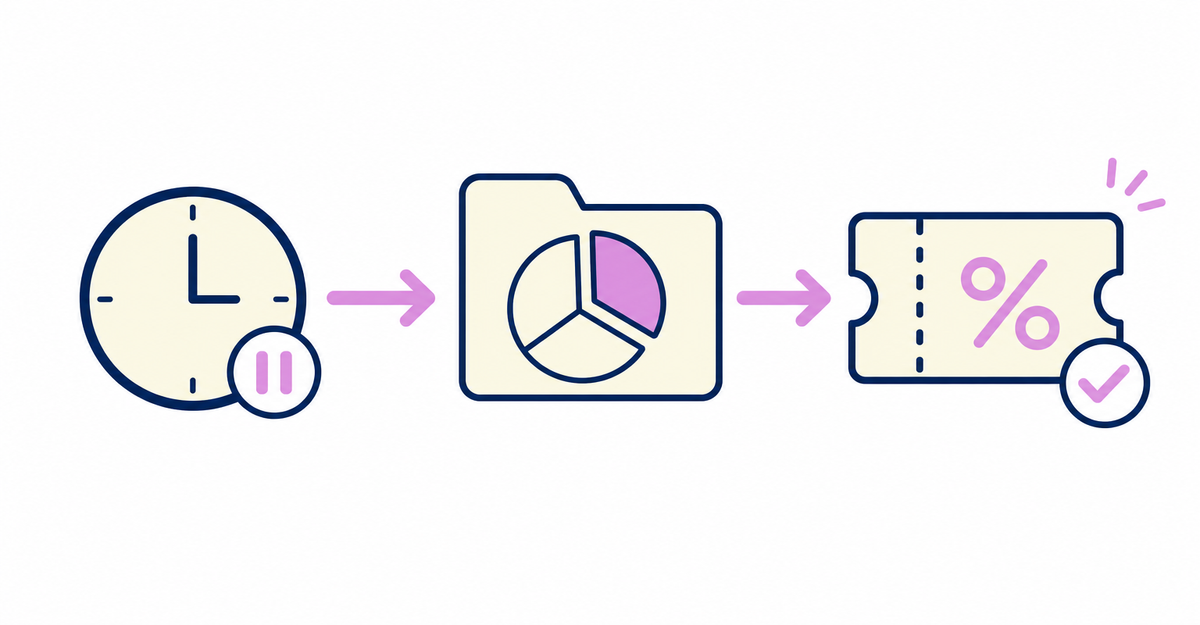
In short: In Shopify customer segments, combine the Last order date filter (last_order_date) with the < operator and a date offset (for example, -8m) to find dormant customers whose last order was placed before the period you specify. You can use the segment as the target of discount codes and automatic discounts, or as the recipients of a Shopify Messaging email campaign, so you can send coupons to dormant customers without installing another app.
Howdy is an app that adds a sign-up form to Shopify's new customer accounts. Fields collected with the sign-up form, such as addresses and birthdays, are saved as standard Shopify customer information or as customer metafields, and you can also combine them with purchase history conditions like the last order date covered in this article to build segments.
After following the steps in this article, you'll have a segment made up only of customers who haven't ordered for a set period, and you'll be able to issue discount codes and send email campaigns to that segment. Shopify's built-in features evaluate the last order date condition, so you don't need another app or extra customer data. Just change the number in the date offset to adjust how long a customer must go without ordering to count as dormant.
Key points
- Set the < operator and a date offset on the Last order date filter (last_order_date) to narrow down to customers whose last order was placed before a set period
- Write the date offset as a number and a unit (d, w, m, or y), such as -8m
- Create segments in the query editor under Customers > Segments > Create segment
- From Use segment on the segment's details page, you can use the segment to create discounts and email campaigns
- Each automatic discount can target up to 5 segments, and each discount code can target up to 100 segments
- You can also combine the dormant customer condition with other filters, such as marketing email subscription status, using AND
How do you set the condition to segment dormant customers?
Use the Last order date filter (last_order_date) in customer segments. This filter targets customers based on the date of their last order, and you can use the < operator, which means "before."
You can also use = for "on a specific date," != for "not on," <= for "on or before," >= for "on or after," > for "after," BETWEEN to specify a range, IS NULL for no value, and IS NOT NULL for any value. You can enter the value as an absolute date (YYYY-MM-DD) or as a date offset. The condition to include customers who placed their first order within the last 8 months is written first_order_date > -8m, so for dormant customers whose last order was more than 8 months ago, change the operator to <: last_order_date < -8m. Date values work in whole days and depend on your store's time zone.
Source: Shopify Help Center: "Shopify-based customer segment filters"
What are the steps to create a customer segment?
You create a customer segment by building a ShopifyQL (Shopify Query Language) query in the query editor under Customers in the Shopify admin. The steps are as follows.
- In the Shopify admin, go to Customers
- Click Segments
- Click Create segment to open the query editor
- Choose the Last order date filter, then set the operator
<and a date offset value - Click Run query (or ▹ Run), then check the customers that match the condition in the list below the editor and the count above the editor
- Click Save segment, enter a name for the segment, and click Save
The query editor already contains the clauses FROM customers and SHOW customer_name, note, subscription_status, location, orders, amount_spent, and you customize the segment by adding a filter, operator, and value to the WHERE clause. If you want to create a segment from a plain-language description, you can also ask Sidekick something like "Create a segment of customers whose last order was more than 90 days ago and who are subscribed to marketing emails."
Instead of building the condition from scratch, you can also start from a template. Under Customers, click the Templates icon, optionally filter by category, and click a template card. The matching filter name, operator, and value are filled in automatically in the query editor. You can then adjust the numbers and periods directly in the editor.
Source: Shopify Help Center: "Creating customer segments"
To learn how to build a segment that combines the dormant customer condition with other filters, such as prefecture, see How to segment customers by prefecture in Shopify and send coupons: area-limited campaigns.
How do you send coupons to the dormant customer segment?
On the details page of the segment you created, click Use segment > Discount, choose the discount type (Amount off products, Amount off order, Buy X get Y, or Free shipping), and create the discount.
You can also add the segment as the target of an existing discount. On the discount's edit page, in the Eligibility section, choose Specific customer segments, select the dormant customer segment you created, and click Add. The number of customer segments you can target is limited: up to 5 per automatic discount and up to 100 per discount code.
Sources: Shopify Help Center: "Managing customer segments" / "Managing and editing discounts"
To learn how to update a membership tier customer metafield automatically with segments based on order count and amount spent, see How to update membership tiers automatically by order count and amount spent in Shopify: customer segments.
Can you also send dormant customers an email campaign?
Yes. On the segment's details page, open Use segment, go to the Shopify Messaging email campaign editor, and choose the dormant customer segment you created as the recipients.
If you want to keep a record of the customers included in an email campaign, you can also export a customer CSV file that contains only the customers in the selected segment.
Only customers who are subscribed to marketing emails receive the message. Shopify Messaging checks for valid subscriber email addresses, so the number of customers who actually receive the campaign may be smaller than the number of customers in the segment.
Source: Shopify Help Center: "Managing customer segments"
Can you narrow down a segment by combining multiple conditions?
Yes. When you use multiple filters, join the conditions with the AND and OR connectors. AND narrows the segment to customers who meet every condition, and OR widens it to customers who meet any of them.
To limit the dormant customer condition to customers who are subscribed to marketing emails, join the conditions with AND, as in last_order_date < -8m AND email_subscription_status = 'SUBSCRIBED'.
Source: Shopify Help Center: "Customer segment components"
Can you separate them from customers who have never ordered?
Yes. The last order date filter alone also includes customers who have never ordered, so to narrow down to customers with past orders, add the order count filter Number of orders (number_of_orders) with AND.
Enter the number of orders as a whole number. You can use the operators =, !=, >, <, <=, >=, and BETWEEN to specify a range. For example, number_of_orders BETWEEN 1 AND 100 narrows the segment to customers who have placed at least 1 and at most 100 orders. Adding number_of_orders > 0 to the dormant customer condition with AND targets only customers who have ordered in the past.
Source: Shopify Help Center: "Shopify-based customer segment filters"
How do you check that it works after setup?
New customers who match the criteria of your dormant customer segment are added to it automatically, and existing customers who no longer match the criteria are removed from it automatically.
When you edit a segment, click Apply in the editor, check that the list of customers shown below the editor is what you expect, and then click Save segment. Test orders and deleted orders are excluded from customer segmentation calculations.
Source: Shopify Help Center: "Managing customer segments"
Related articles
- How to segment customers by prefecture in Shopify and send coupons: area-limited campaigns
- How to update membership tiers automatically by order count and amount spent in Shopify: customer segments
Frequently asked questions
Try Howdy free for 14 days
You can segment dormant customers and send them coupons using only Shopify's built-in customer segments. Our dedicated team creates your customer metafields, sets up the fields on your sign-up form, and places blocks on your profile page for free.




