
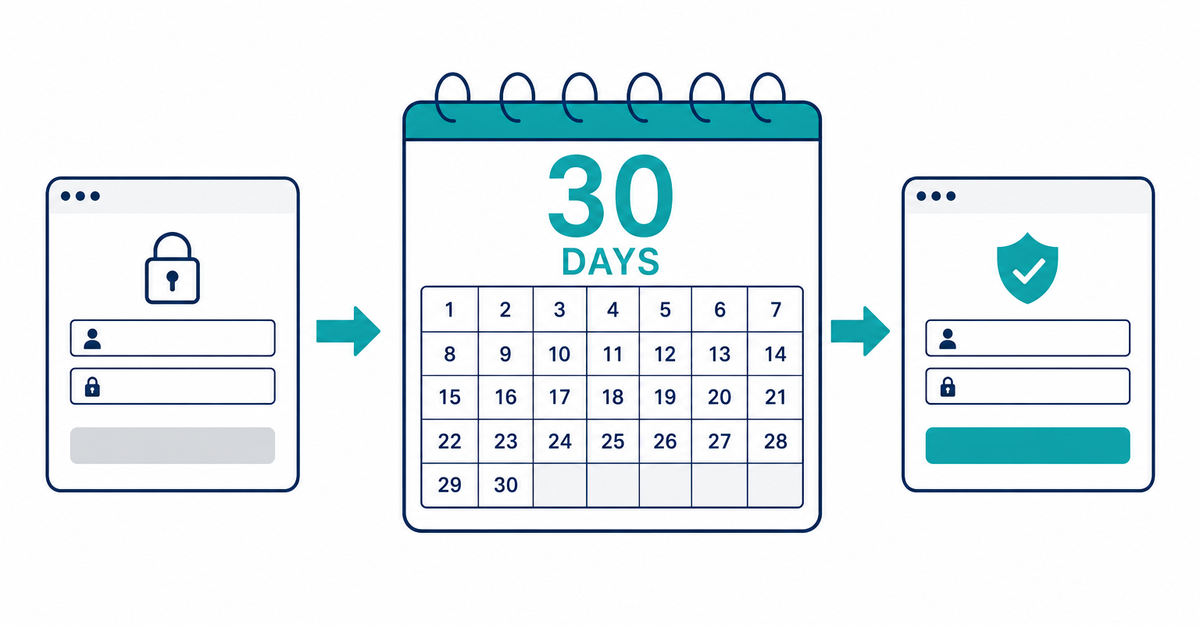
In short: After you switch from legacy customer accounts to new customer accounts, you can go back to legacy customer accounts within 30 days of the upgrade. Upgrade only after you finish the preparation and testing in the steps in Shopify Help, and check limitations such as customer segments that use customer_account_status before you upgrade.
Key points
- You can go back to legacy customer accounts within 30 days of the upgrade
- After the deadline, you can't go back to legacy customer accounts
- Before the switch date, finish duplicating your checkout configuration, adding app blocks, setting up branding, connecting a subdomain, and checking the preview after publishing
- Before upgrading, log in to new customer accounts from the URL in the URL field in the Shopify admin and test all sign-in options
- Before upgrading, check limitations such as custom login and sign-up pages, workflows, and customer segments that use customer_account_status
How long can you go back to legacy customer accounts?
Within 30 days of the upgrade. During this period, you can switch from new customer accounts back to legacy customer accounts. After the deadline, you can't go back.
Source: Shopify Help Center: "Upgrading to customer accounts from legacy customer accounts"
How do you choose the switch date?
In the upgrade steps in Shopify Help, you finish the preparation and testing in steps 1 to 8, and once you're ready for customers to use new customer accounts, you upgrade in step 9.
The preparation covers reviewing customizations in your legacy customer account templates, duplicating your checkout configuration, adding apps to replace your legacy customizations, checking your brand settings, connecting a subdomain for customer accounts, checking your sender email address, publishing your configuration, and previewing and testing.
The customizations you review in step 1 vary by store, depending on your theme and apps. Feel free to contact us.
Source: Shopify Help Center: "Upgrading to customer accounts from legacy customer accounts"
Can you try new customer accounts before upgrading?
Yes. In the Shopify admin, go to Settings > Customer accounts, copy the URL in the URL field, open it in a new tab, and log in with a test customer account. Until you upgrade, your store and checkout stay on legacy customer accounts.
Step 8 in Shopify Help tells you to test every sign-in option you offer, such as email verification codes and social login. If you set up a subdomain, the URL is in the format account.{your store domain}. If you didn't, it's in the format https://shopify.com/{store ID}/account.
Source: Shopify Help Center: "Upgrading to customer accounts from legacy customer accounts"
Is there anything to check before the switch?
Shopify Help lists six limitations to check before upgrading: custom login and sign-up pages, workflows, customer segments, domains for each market, Multipass, and sign-in page customization.
- Custom login and sign-up pages: Legacy URLs (such as /account/login) are redirected automatically, including hard-coded links in your theme. If you built your own login or sign-up page in a modal or on a separate page, you might need to remove it from your theme before upgrading
- Workflows: Workflow triggers and automations based on legacy customer accounts can't be migrated to new customer accounts
- Customer segments: Segments that include the customer_account_status filter won't work as expected after the upgrade
- Domains for each market: You can use only one domain for customer account pages across all markets
- Multipass: Existing integrations used on Shopify Plus keep working after the upgrade, and no action is needed
- Sign-in page: You can't add blocks. You change the logo, colors, fonts, and brand images in the checkout and accounts editor
Checks for theme customizations, the fields you collect, and what you tell existing customers are covered in 5 things to check before migrating from legacy customer accounts.
Source: Shopify Help Center: "Upgrading to customer accounts from legacy customer accounts"
Related articles
- 5 things to check before migrating from legacy customer accounts
- What are Shopify's new customer accounts? Differences from legacy accounts and what to do in 2026
Frequently asked questions
Questions about new customer accounts? Ask us anytime.
You can ask us about preparing for the upgrade and checking the limitations. Our dedicated team creates customer metafields, sets up sign-up form fields, and places profile page blocks for you, free of charge.




